
Managing tasks
A task in TrainAR is a unit of work an engineer is going to do - a boiler service, a fault diagnosis, a remedial call.
A task in TrainAR is a unit of work an engineer is going to do - a boiler service, a fault diagnosis, a remedial call. Tasks give the AI assistant on the glasses context for the session: what's the job, who's it for, what background applies. They're also what the Dashboard's session list links back to via the "Linked Task" card.
This page covers tasks created or managed from the Dashboard side. For tasks that come in automatically from your field-service integration, see Tasks from integrations.
Where tasks live
Dashboard → Tasks shows every task in your account in a single table.
Status tabs
The status filter is a row of tabs across the top: All / Open / In Progress / Completed / Archived.
Filters
Underneath: a search box and three filter dropdowns (always visible):
- Search - full-text search on title/description
- All Priorities - All / Low / Medium / High / Urgent
- All Users - All Users / Unassigned / (each account user)
- All Sources - All Sources / Manual / API / Integration (filters by where the task originated)
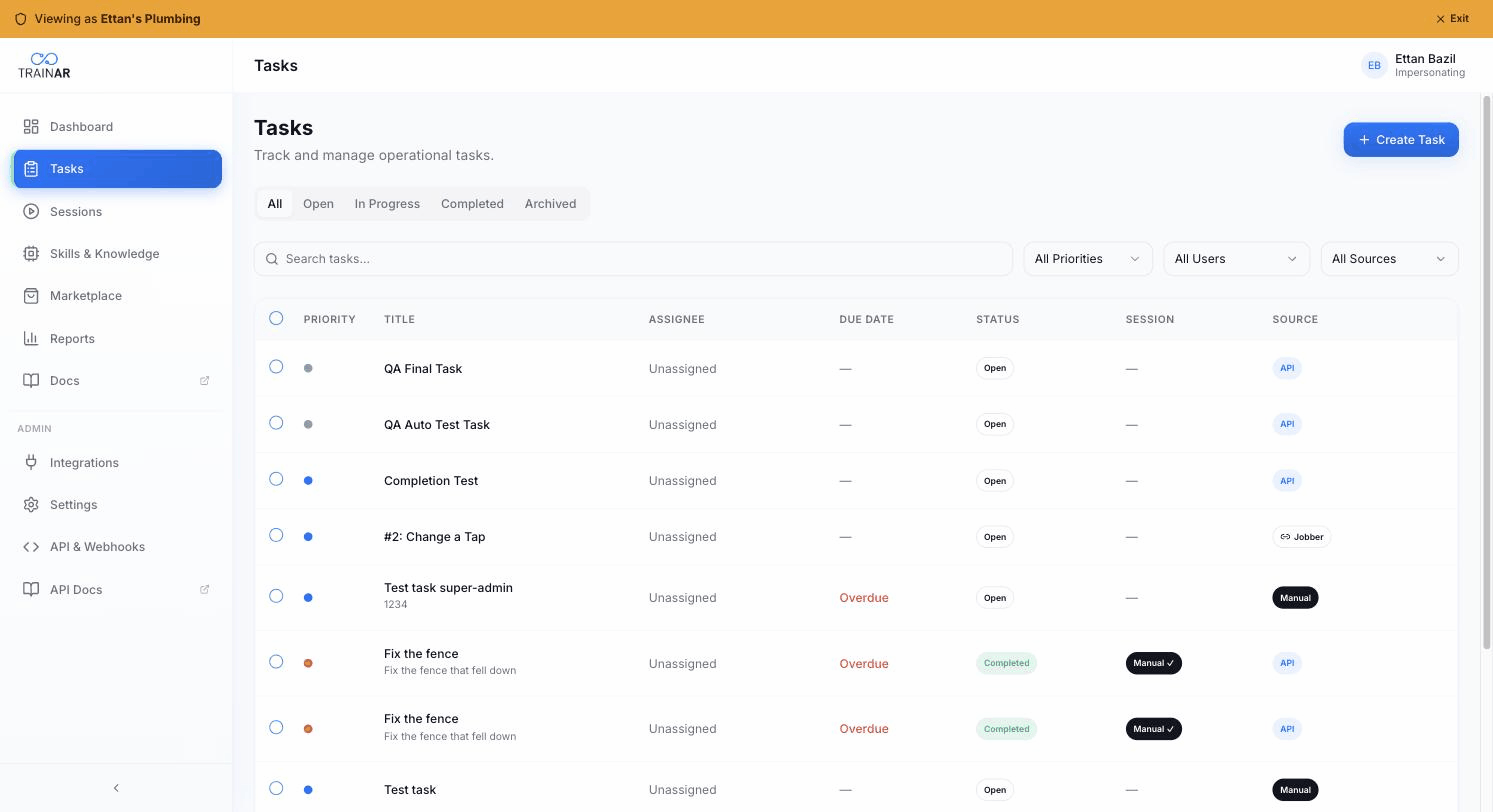
Table columns
| Column | Notes |
|---|---|
| (Checkbox, admin only) | Bulk-select |
| Priority | A coloured dot - grey/blue/orange/red |
| Title | The task title (clickable - opens the detail modal) |
| Assignee | Avatar + name, or "Unassigned" |
| Due Date | Date or "Overdue" in red |
| Status | Open / In Progress / Completed / Archived / Cancelled badge |
| Session | Per-task session badge (see below) |
| Source | Manual / API / Integration with provider tooltip |
| (Hover actions) | ⋯ menu → View / Edit (admin) / Delete (admin) |
Session badge
The Session column reflects the task's relationship to a training session:
-- no session, task is Open- In Progress (blue) - a session is currently running against this task; click to jump to it
- Session ✓ (green) - completed by an engineer running a session that ended successfully
- Manual ✓ - an admin marked it complete from the Dashboard
- Integration ✓ - the source FSM marked the underlying job complete and that synced in
- Completed - fallback for other completion paths
Creating a task manually
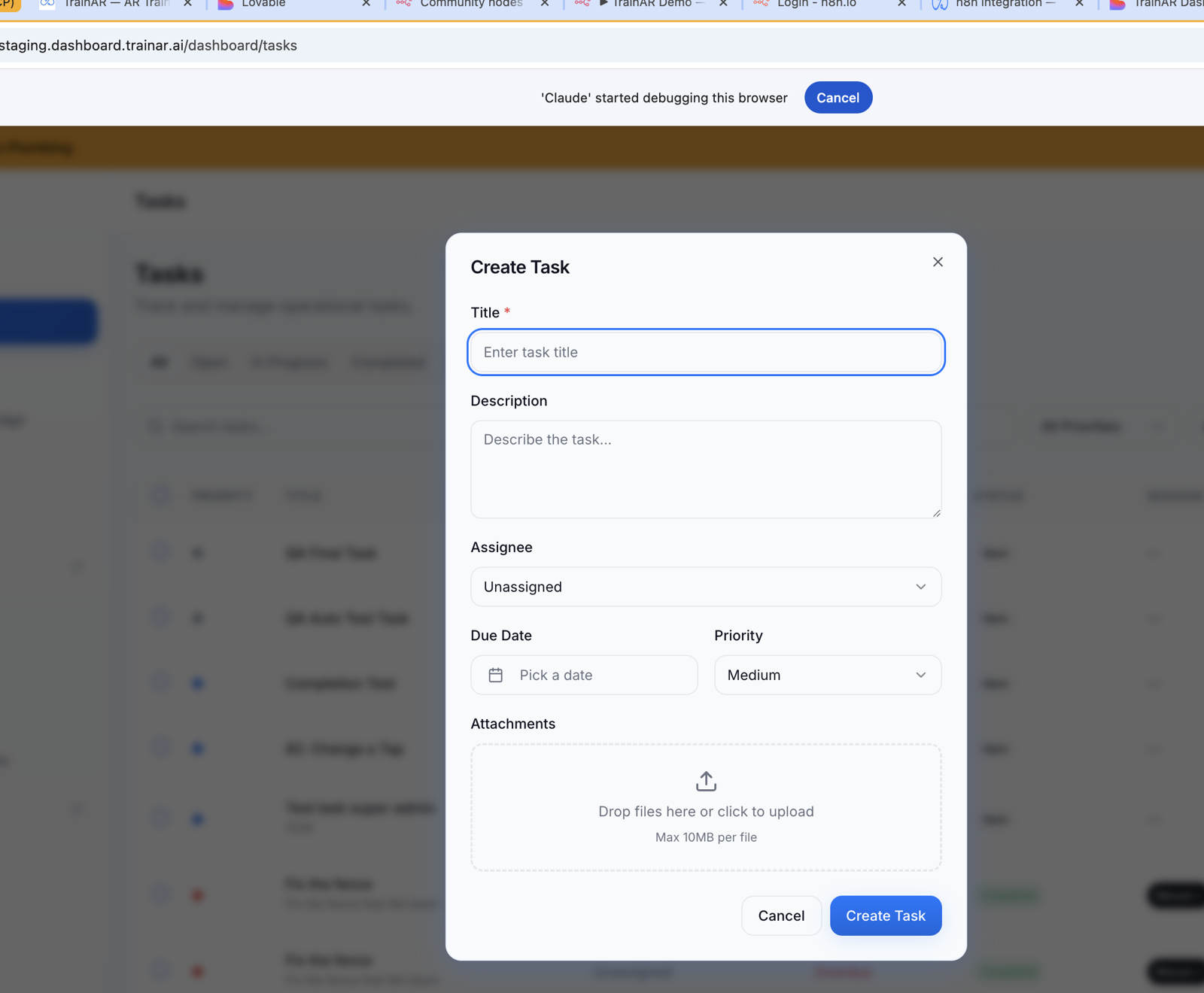
Admin only. Create Task button top-right. The modal has:
- Title (required)
- Description (textarea - used as AI session context)
- Assignee (Unassigned by default, or pick an account user)
- Due Date (calendar picker, optional)
- Priority (Low / Medium / High / Urgent - Medium is default)
- Attachments (drag-drop or click - multiple files, 10 MB per file max, any type)
Click Create Task. The task appears in the Open tab and the assigned engineer sees it on next sync.
Editing follows the same modal - title, description, assignee, due date, priority, attachments. Reachable from the ⋯ menu (Edit) or the detail modal.
Task detail modal
Click any row's title to open the detail modal.
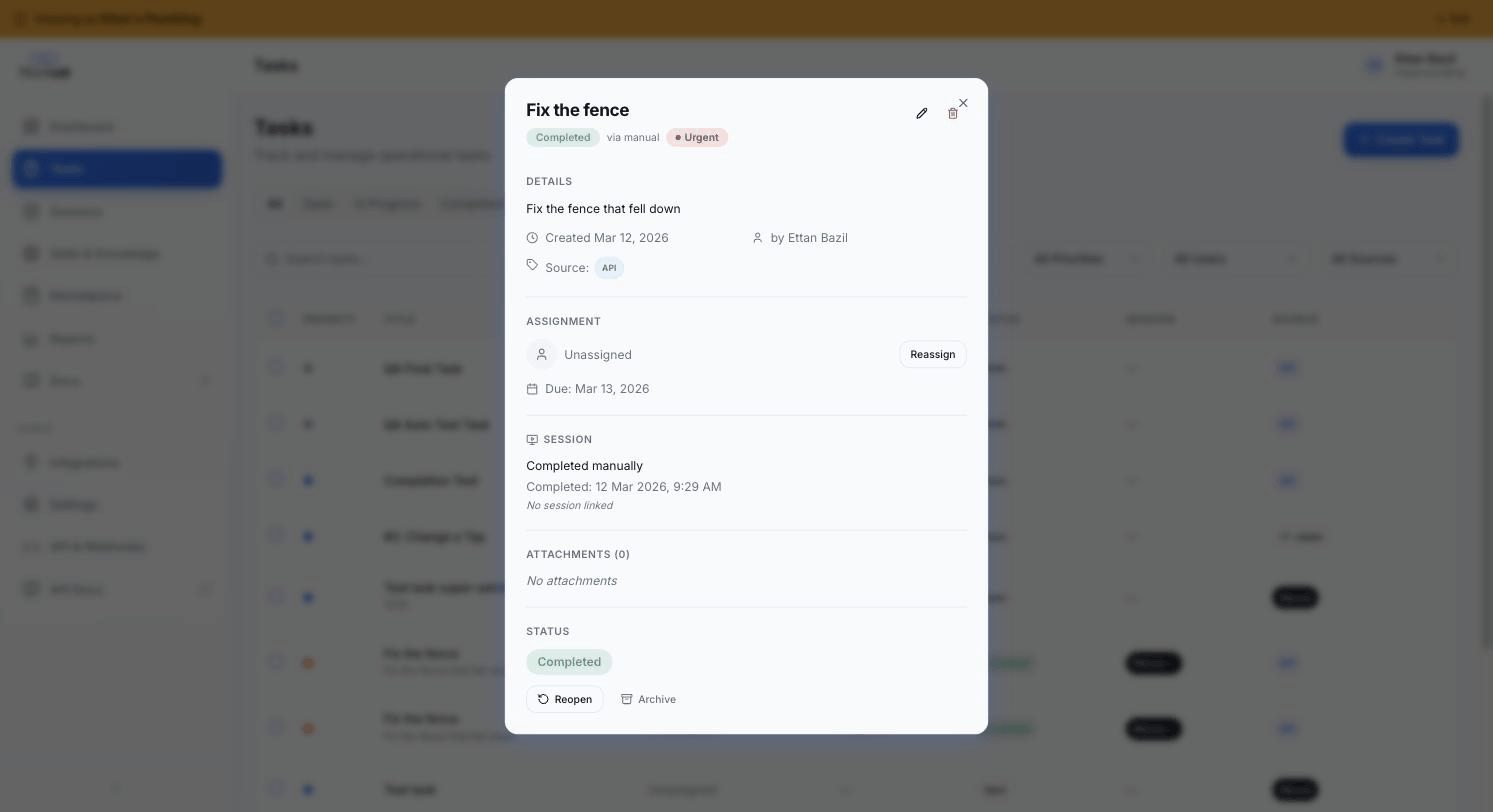
It shows:
- Header - title, status badge, priority badge, action buttons (Edit / Mark Complete / Reopen / Archive / Delete depending on role + state)
- Description
- Calendar/User chips - due date, assignee
- Tags (source badge - manual / integration with provider name)
- Attachments - downloadable list
- Session block - if a session is linked, you'll see a thumbnail + duration + steps-completed + tools-used + notes + "View Session →" button; if no session, "No session linked"
- Failed sessions block - list of past attempts that ended abnormally (started/failed timestamps + reason)
Bulk operations (admin only)
When you have rows selected, the bulk-action bar appears with Complete, Archive, and Delete:
- Complete - marks selected tasks status
completed, completion_sourcemanual - Archive - moves tasks out of the default Open/In Progress views into the Archived tab; non-destructive
- Delete - irreversible. Removes the task and any session links
Selection scope is the currently-visible filtered rows. There's no cross-page select.
What's NOT here
- No "Link procedure" feature (procedures are auto-extracted from sessions, not pre-linked to tasks)
- No saved filter views
- No CSV import (use the TrainAR REST API for bulk task creation - see Developer)
- No bulk-assign / bulk-reassign / bulk-priority-change (only Complete / Archive / Delete)
- No tags on tasks (only the source badge and the status badge)
Where to next
- Tasks from integrations - how tasks flow in from connected FSMs
- Tasks → sessions writeback - what happens after the engineer completes the work
- Trainee mode - what the engineer experiences when working a task on the glasses