
Billing & subscriptions
Settings → Billing (admins only) is where you manage your plan, seat count, minute pool, coupons, and view invoices.
Settings → Billing (admins only) is where you manage your plan, seat count, minute pool, coupons, and view invoices. All payments flow through Stripe; payment-method edits happen in the Stripe Customer Portal we link out to.
What you see depends on plan state
The Billing tab adapts to your subscription status:
Free / trial accounts
- Welcome Minutes card - counts down from the minutes granted on signup (typically 30). These don't refresh.
- Why Subscribe? card - three short bullets explaining what subscribing unlocks (monthly refreshing minutes, more seats, Marketplace bundles).
- Subscribe to Get More Minutes - primary CTA, opens the package picker.
- Buy Minutes - secondary CTA, opens the minute-pack picker (one-off top-up without a subscription).
Active subscribers
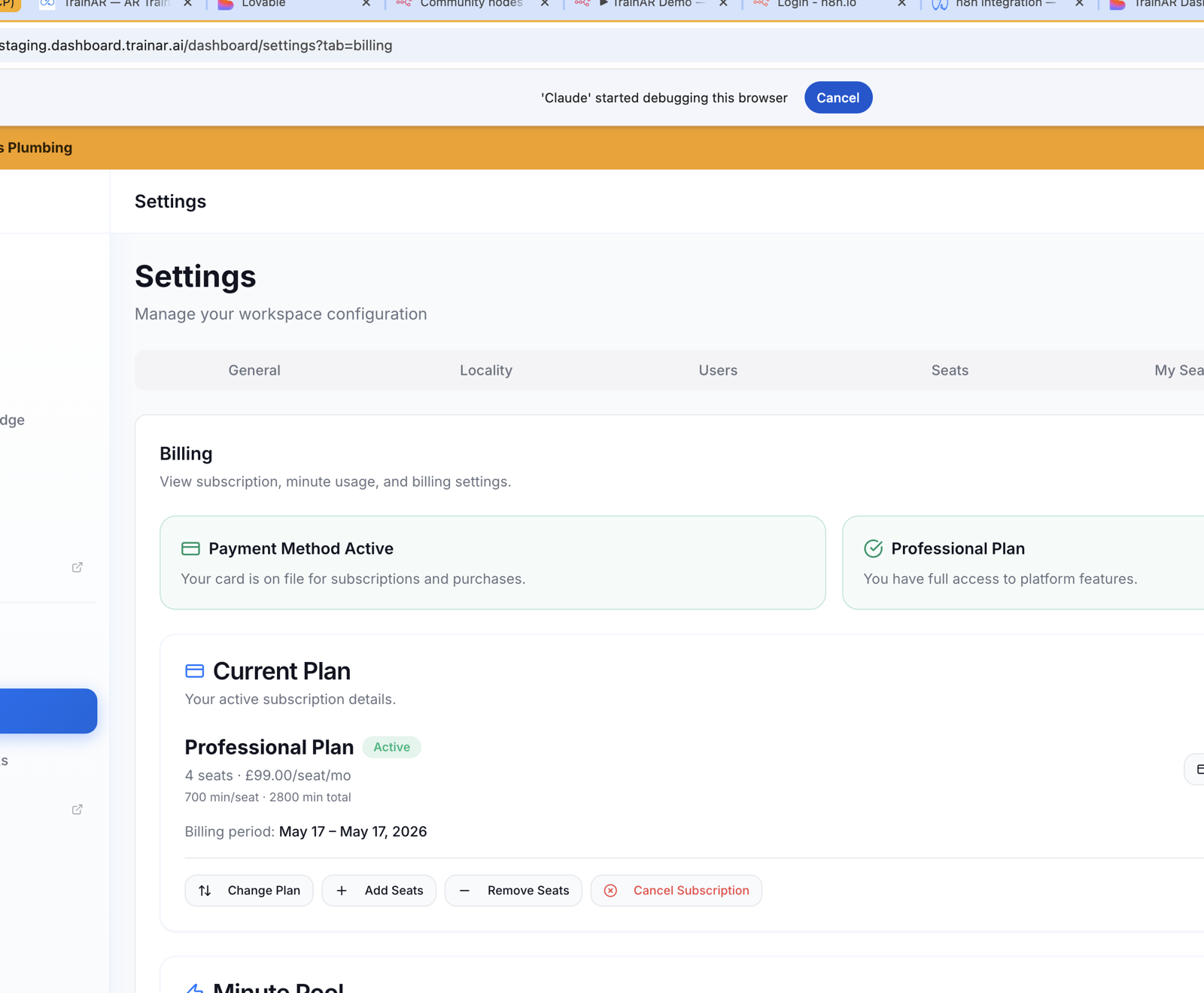
- Current Plan card - plan name (e.g. "Professional Plan"), Active badge, seat count + £/seat/mo + minute allocation (e.g. "4 seats · £99.00/seat/mo · 700 min/seat · 2800 min total"), billing period (e.g. "May 17 – May 17, 2026"), Update Payment / Manage Billing buttons (both open the Stripe Customer Portal).
- Change Plan - swap to a different subscription package.
- Add Seats / Remove Seats - adjust the count without changing package.
- Cancel Subscription - red. Cancels at end of current billing period (you keep access until then).
- Reactivate - appears if a cancellation is scheduled but the period hasn't ended yet.
Billing Status Overview
At the top of the tab is a Billing Status strip - three or four cards summarising plan, seat usage, minute pool, and any billing issues (payment failure, past-due invoice, etc.). It mirrors the in-page warnings so you always see a problem before you have to dig.
Seats
Add or remove seats from the Billing tab (or from the Seats tab - both routes call the same backend). Seat changes sync to Stripe immediately:
- Add seats - proration is invoiced on your next bill.
- Remove seats - Stripe credits the unused portion of the cycle.
You can't reduce below the count of currently-paired seats without unpairing first.
Minute pool
The minute pool is your account's session-minute balance. Two sources:
- Included - refreshed monthly by your active subscription (e.g. 200–500 min/seat depending on package).
- Purchased - bought via minute-pack top-ups, no expiry.
Buying minutes (one-off)
Buy More Minutes opens a picker showing each available minute pack with name, description, minutes, and price. Selecting a pack opens Stripe Checkout in a new tab; on success, the pack is added to your purchased balance.
Auto top-up
If you don't want to monitor the balance manually:
- Toggle Auto top-up on.
- Set a threshold (e.g. when balance drops below 100 minutes).
- Set an amount to top up (or pick a minute pack).
- Save.
When the threshold trips, TrainAR charges your saved payment method and credits the purchased balance. If the charge fails, you get an in-Dashboard banner and an email.
Coupons
Apply Coupon is a one-off action - paste a coupon code and it applies. Coupons can only be applied when starting a new subscription (not mid-cycle on an existing one). If you've already got a subscription, the modal will tell you so.
Invoices
Below the plan card is the Invoices table - every Stripe invoice for your account, with download (PDF) and view (Stripe-hosted page) buttons.
Billing details
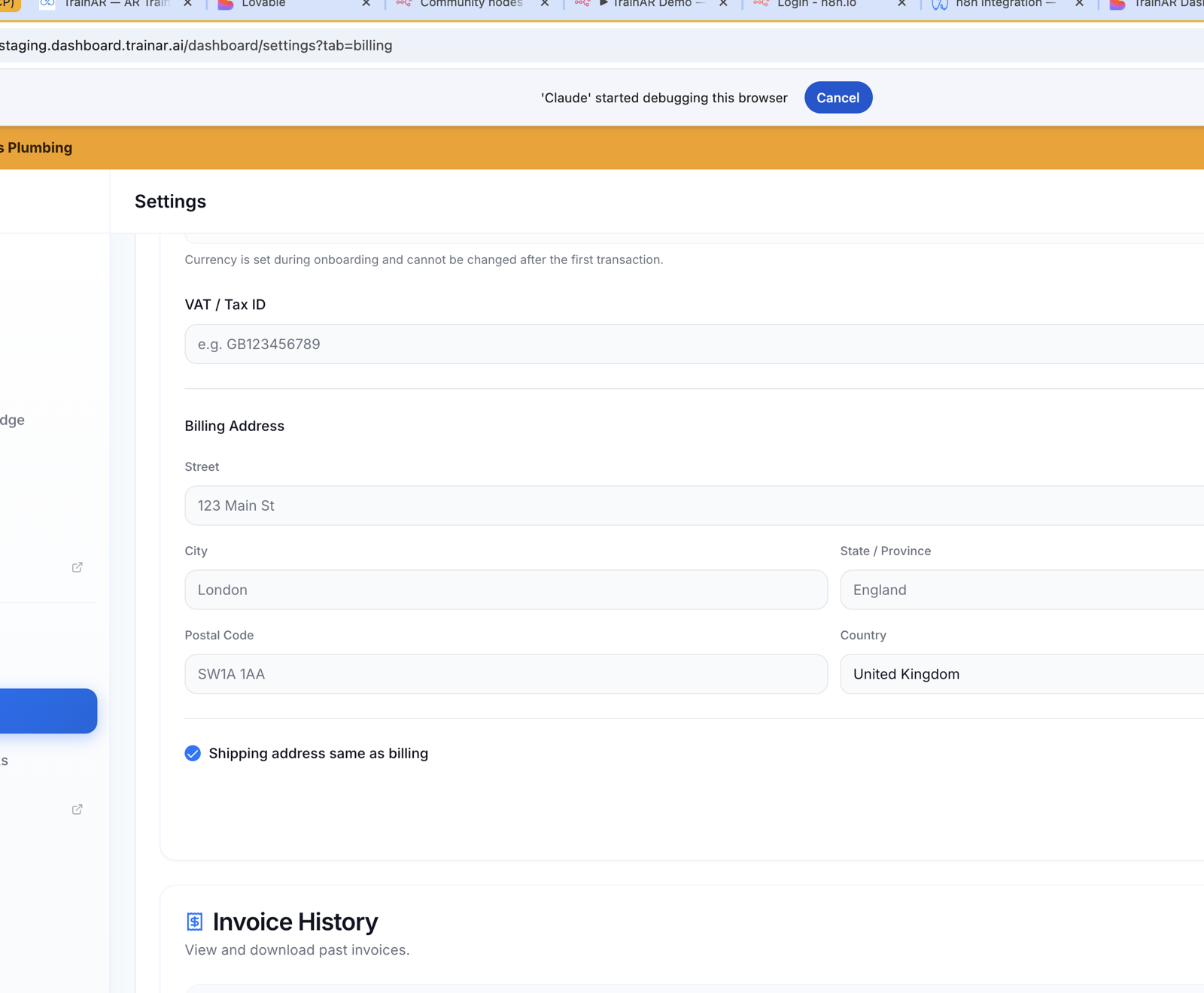
Further down the page is a Billing Details form:
- VAT / Tax ID - your account's VAT number (e.g.
GB123456789). Used on invoices. - Billing Address - Street / City / State or Province / Postal Code / Country
- Shipping address same as billing - checkbox; uncheck to enter a separate shipping address (used for AR-glasses orders)
- Save Billing Details button
Currency is set at onboarding and can't be changed later from this form.
Invoice History
A table of every Stripe invoice for your account: Date / Invoice number / Description / Amount / Status / Actions (view, download PDF). Status is typically paid.
Payment method
To add, update, or remove a card, click Update Payment (or Add Payment Method if you don't have one) - TrainAR opens the Stripe Customer Portal in a new tab. All card management happens there.
What's NOT in Billing
- No fixed tier names enforced by the platform (no hardcoded Starter/Pro/Enterprise) - package names are whatever the platform team has defined (e.g. "Professional Plan"). You pick from a list.
- No per-engineer minute allocation - the pool is account-wide
- No notifications panel - billing failures alert you in-Dashboard but there's no threshold-alert config
- No multi-currency picker after onboarding - currency is set at signup
- No "tell us why you're cancelling" survey - cancellation is a single confirmation
Where to next
- Users & seats - managing the seats you've paid for
- Marketplace overview - bundles are billed separately from your base subscription
- Minutes report - how the pool is being consumed