
Creating a custom skill
Custom skills let you connect the on-glasses AI to your own systems.
Custom skills let you connect the on-glasses AI to your own systems. A skill wraps a webhook you own: when the engineer says something that matches the skill's description, the AI calls your endpoint, passes the relevant data, and uses what comes back. This page walks through every field in the skill form.
Opening the skill form
Dashboard → Skills & Knowledge → Skills tab → Create Skill. The form opens as a modal.
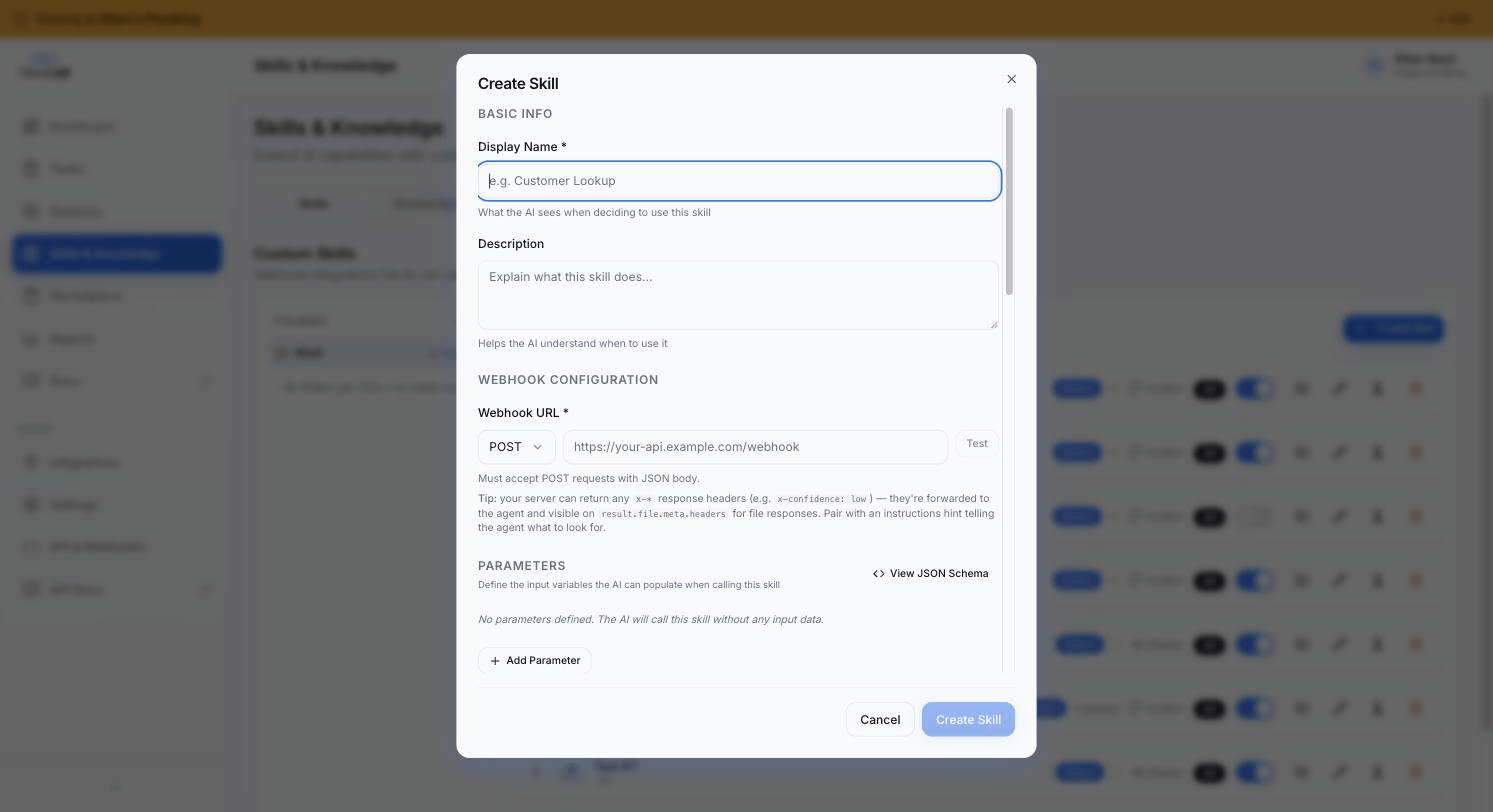
Basic info
Display name
The human-readable name shown in the Dashboard and in the MCP Tools tab. Use something clear and specific: "Customer Warranty Lookup" beats "CRM Call".
Name (auto-generated)
The technical identifier used in API calls and logs. TrainAR generates this automatically from the display name in snake_case (e.g. customer_warranty_lookup). You can override it, but snake_case is required and it can't be changed after the skill is used in a session.
Description
This is the most important field. The AI uses the description - and only the description - to decide when to call this skill. Write it to answer the question: "When should the AI use this skill?"
Ineffective description:
Looks up warranty information from the CRM.
Effective description:
Call this skill when the engineer asks about a customer's warranty status, warranty expiry date, what is covered under warranty, or whether a repair will be covered. Use it whenever warranty coverage or warranty history is mentioned.
The difference: the first describes what the skill does; the second describes when to call it. Include synonyms and natural phrasings your engineers actually use.
For multi-step orchestration (e.g. "always identify the appliance first, then look up parts"), encode the orchestration pattern in the description itself. The Parts Arena skills do this - pa_show_manual_page description includes "TWO-STEP USAGE PATTERN: (1) Call with mode='pick' to get candidate sections back, (2) Call with mode='render' to display the chosen page."
Webhook configuration
Webhook URL
Your HTTPS endpoint that receives the call. Must accept the HTTP method you choose. It receives a JSON body containing the parameters the AI filled in plus a session_context object, and must return JSON.
HTTP method
POST (default, supports a structured JSON body) or GET (parameters as query strings).
Auth header (optional)
A header sent with every call to your endpoint so you can verify it came from TrainAR. Common patterns: Authorization: Bearer <your-secret> or X-API-Key: <your-key>. Stored encrypted in your account.
Timeout (ms)
How long the AI will wait for your endpoint to respond before giving up. Default 15000 (15s). Maximum 30000. If your endpoint regularly takes longer, the engineer experience will suffer - make the upstream call asynchronously and return a status immediately.
Parameters schema
Define the arguments the AI will fill in from the conversation. The format is JSON Schema. Example for a warranty lookup:
{
  "type": "object",
  "properties": {
    "customer_id": {
      "type": "string",
      "description": "The customer's ID, phone number, or postcode"
    },
    "appliance_type": {
      "type": "string",
      "enum": ["boiler", "water_heater", "central_heating", "other"]
    }
  },
  "required": ["customer_id"]
}
The AI uses each property's description to know what to extract from the conversation, and the enum / pattern / required rules to validate before calling.
Response handling
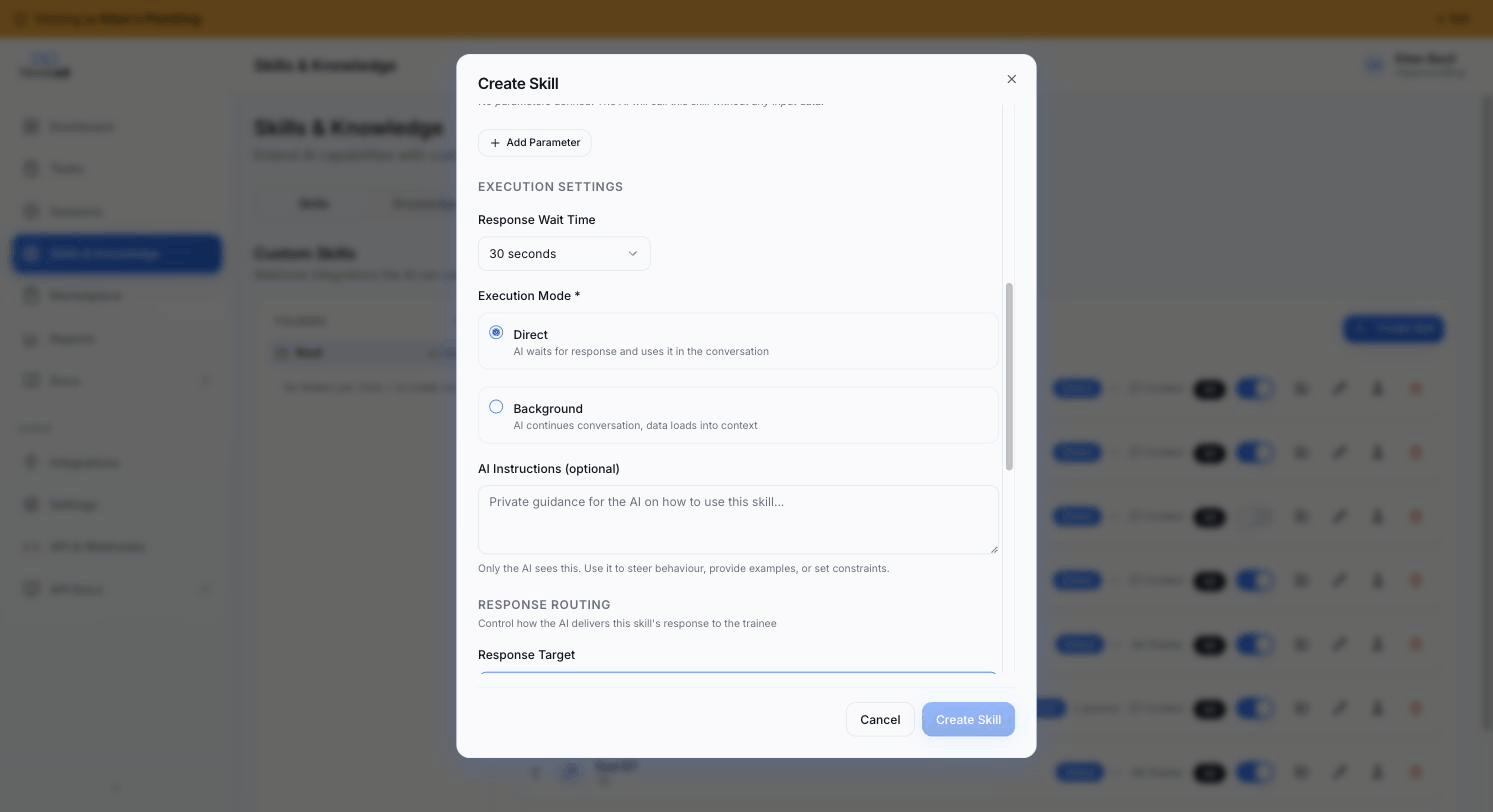
These four fields control how the AI uses your skill's response. See Skill response fields for the full reference; brief summary:
response_target:context(AI gets the response as text and uses it however) ordisplay(response renders on the glasses display).display_hint(when target=display):fullscreenorhud.response_scheduling:INTERRUPT(cut in mid-speech) orWHEN_IDLE(queue until AI is idle).capture_frame_on_execute: if true, the AI attaches a video frame from the glasses to your skill call (useful when your endpoint needs to see what the engineer is looking at).
Assignment
- Scope:
org(all seats) orseat(specific seats only). - Assigned roles: if
seat-scoped, multi-select the roles that get access.
Instructions (optional)
Free-text notes that get attached to the AI when this skill is shown to it. Useful for guardrails ("never call this skill more than once per session" / "always confirm the customer's identity before calling").
Save → test → activate
- Save the draft.
- Test with realistic parameters - see Testing a skill.
- Activate by toggling is_active. The next session for an assigned seat picks it up.
Where to next
- Testing a skill - verify your webhook works before going live
- Skill response fields - full reference
- How skill orchestration works - how the AI picks between skills