
API keys
API keys give external tools and agents access to your TrainAR account.
API keys give external tools and agents access to your TrainAR account. Each key carries a set of permission scopes that control exactly what the key can do -- a key for reading session history has no ability to create tasks or invite users.
Create a key
- Go to Dashboard → API & Webhooks.
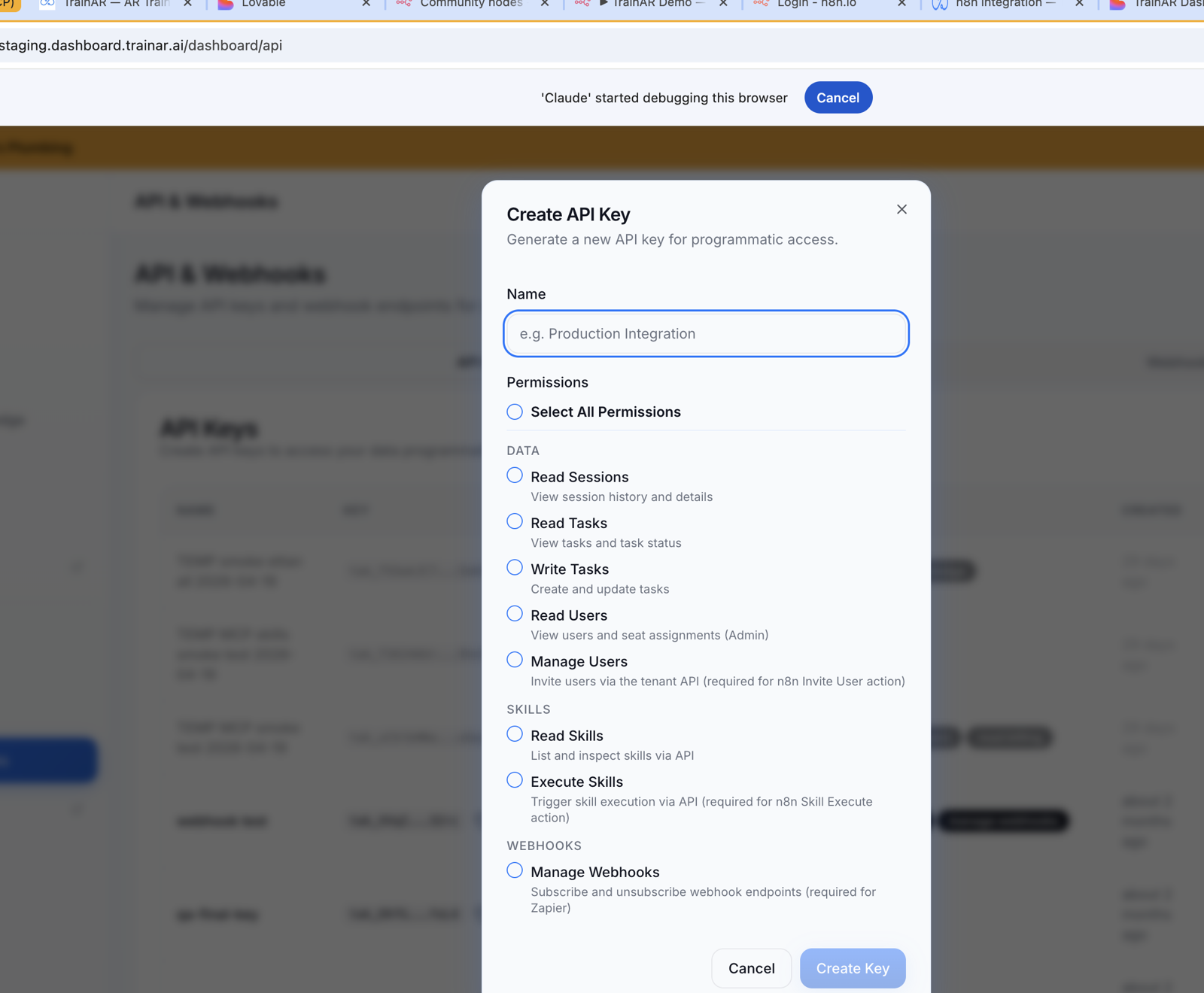
- Click the API Keys tab, then Create API Key.
- Give the key a name that describes what it will be used for (for example, "n8n production" or "reporting script").
- Tick the scopes the key needs. Only select what the integration actually requires.
- Click Create Key.
The full key value is shown once immediately after creation. Copy it and store it securely - TrainAR stores only a hash and cannot show the value again. If you lose it, revoke the key and create a new one.
Permission scopes
| Scope | What it allows |
|---|---|
read:tasks |
List and retrieve tasks |
write:tasks |
Create and update tasks |
read:users |
List users and view seat assignments |
manage:users |
Invite new users via the API |
read:skills |
List and retrieve skill definitions |
write:skills |
Execute a skill via the API |
read:sessions |
View session history and details |
manage:webhooks |
Subscribe and unsubscribe webhook endpoints |
Scopes are additive -- a key with both read:tasks and write:tasks can do both. There is no "superscope" that grants everything; each permission must be explicitly selected (or use Select All Permissions at the top of the modal).
Scope guidance for common use cases
n8n integration
- Trigger node:
manage:webhooks - Task Find / Create / Update Status:
read:tasks,write:tasks - User Find / Invite:
read:users,manage:users - Skill Execute:
write:skills
Read-only reporting script
read:tasks,read:users,read:sessions
Webhooks only (Zapier, custom listener)
manage:webhooks
MCP server with full agent access
- All scopes, or the subset matching what your agent will actually do.
Use the key in requests
Pass the key as a Bearer token in the Authorization header on every request:
curl https://api.trainar.ai/v1/api-tenant-tasks \
  -H "Authorization: Bearer tak_your_key_here"
The key prefix is always tak_. If your request is rejected with a 401, check that the header is present and the key has not been revoked.
What error codes mean
| Status | Meaning |
|---|---|
401 Unauthorized |
No Authorization header, malformed header, or key not found |
403 Forbidden |
Key found but lacks the required scope for this endpoint |
409 Conflict |
(invite endpoint only) User already exists |
Rotate a key
TrainAR does not support in-place rotation (updating a key while keeping the same value). To rotate:
- Create a new key with the same name and scopes.
- Update your integration to use the new key.
- Verify the integration is working.
- Revoke the old key.
Do not revoke the old key before the new one is in place.
Revoke a key
Go to Dashboard → Dashboard → API & Webhooks → API Keys, find the key, and click Revoke. Revocation is immediate -- any integration using the key will receive a 401 on its next request.
Revoked keys cannot be reinstated. Create a new key if the integration still needs access.
Security best practices
Do not commit keys to source control. Use environment variables or a secrets manager. Check your .gitignore covers any .env files before your first commit.
Use minimum scopes. A key for a webhook listener needs only manage:webhooks. A key that leaks is less damaging if it carries narrow permissions.
One key per integration. If a key is leaked from one integration, revoking it should not break others. Give each system its own key.
Rotate periodically. Rotate keys at least annually, or immediately if you suspect exposure (a key may have been logged, committed to a repo, or passed over an unencrypted channel).
Check the "Last Used" column. Keys visible in the table show when they were last used. A key marked "Never" after several weeks may be stale -- consider revoking it.
Use HTTPS. Every TrainAR API endpoint is HTTPS-only. Sending a key over plain HTTP is not supported and the connection will be rejected.
Viewing your keys
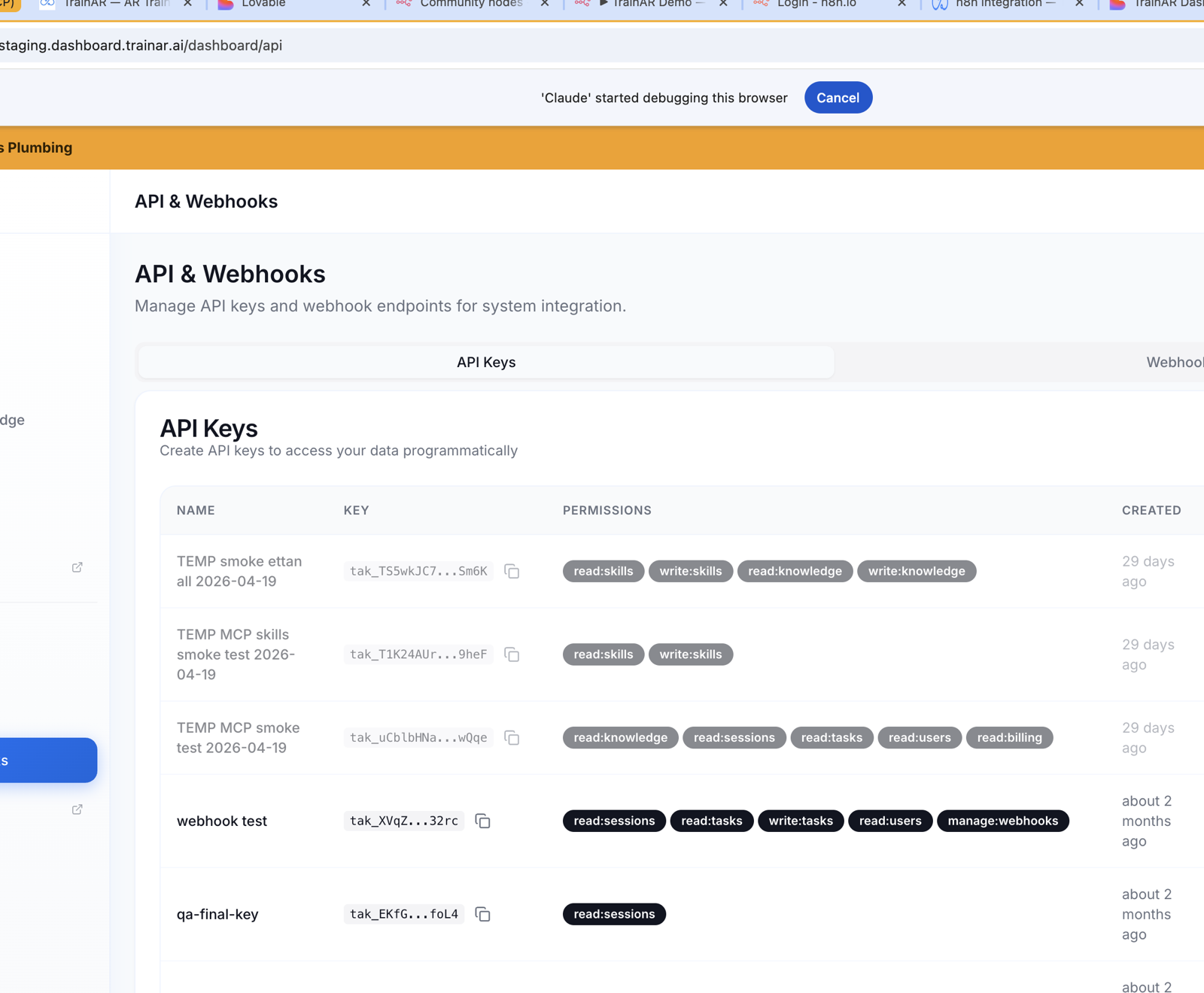
The key table in Dashboard → Dashboard → API & Webhooks shows every active key, its scopes, creation date, and last-used timestamp. The full key value is not shown -- only a short preview for identification. The table also shows any Zapier-managed keys separately; those are managed by Zapier's OAuth flow rather than the Create API Key dialog.
Next steps
- TrainAR REST API reference -- make your first authenticated call.
- Webhooks -- subscribe to events using
manage:webhooks. - TrainAR MCP server -- connect to Claude Desktop or n8n AI agents.