
Connecting an MCP server
The Skills & Knowledge → MCP Tools tab groups what's connected to your account into three sections: - Integration Tools - MCP servers carried by a TrainAR integr
The Skills & Knowledge → MCP Tools tab groups what's connected to your account into three sections:
- Integration Tools - MCP servers carried by a TrainAR integration you've connected (e.g. ServiceM8 ships its
https://go.servicem8.com/mcpserver) - Platform Tools - MCP servers TrainAR has connected platform-wide for every account (e.g. FerryHopper, NYC Subway Info as demo/utility tools)
- Custom MCP Servers - MCP servers you've added directly via + Add Server
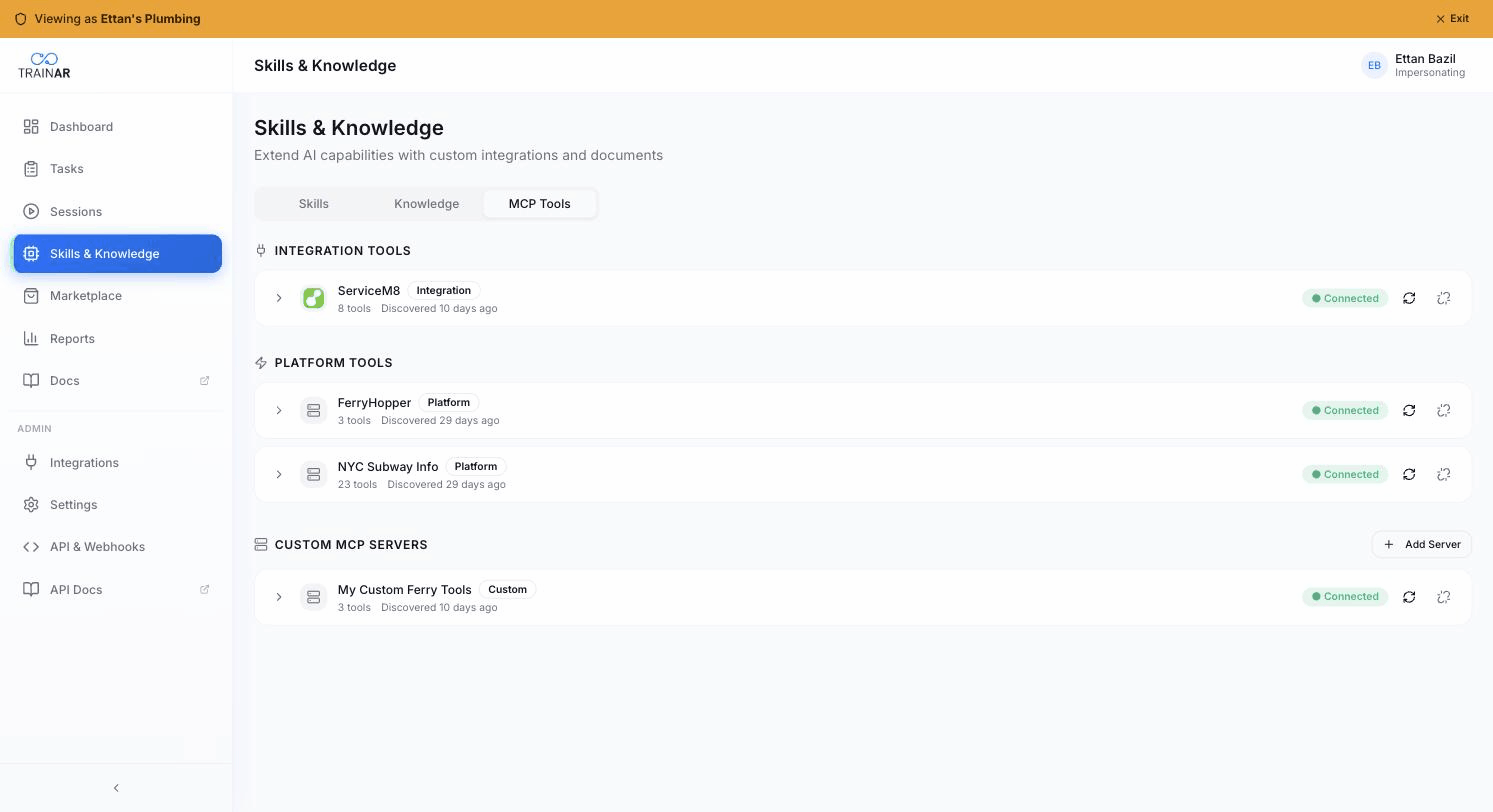
Three connection paths map to the three sections.
Path A - via a TrainAR integration
If the MCP server you want is exposed by a system TrainAR already integrates with, the connection happens automatically when you set up that integration.
Currently this includes:
| Integration | MCP server URL | What gets added |
|---|---|---|
| ServiceM8 | https://go.servicem8.com/mcp |
Job, customer, quote, asset, form tools |
Steps:
- Settings → Integrations → connect the integration (OAuth flow).
- The integration record's
mcp_enabledflag istruefor these connectors - the MCP server is auto-discovered. - Skills & Knowledge → MCP Tools tab - the server appears with its tools listed within a minute.
You don't enter the MCP URL or auth credentials manually - they're carried from the integration's OAuth.
Path B - direct MCP server connection
For MCP servers not yet a TrainAR integration:
Skills & Knowledge → MCP Tools tab → Add Server (under Custom MCP Servers).
The Add Custom MCP Server modal opens:
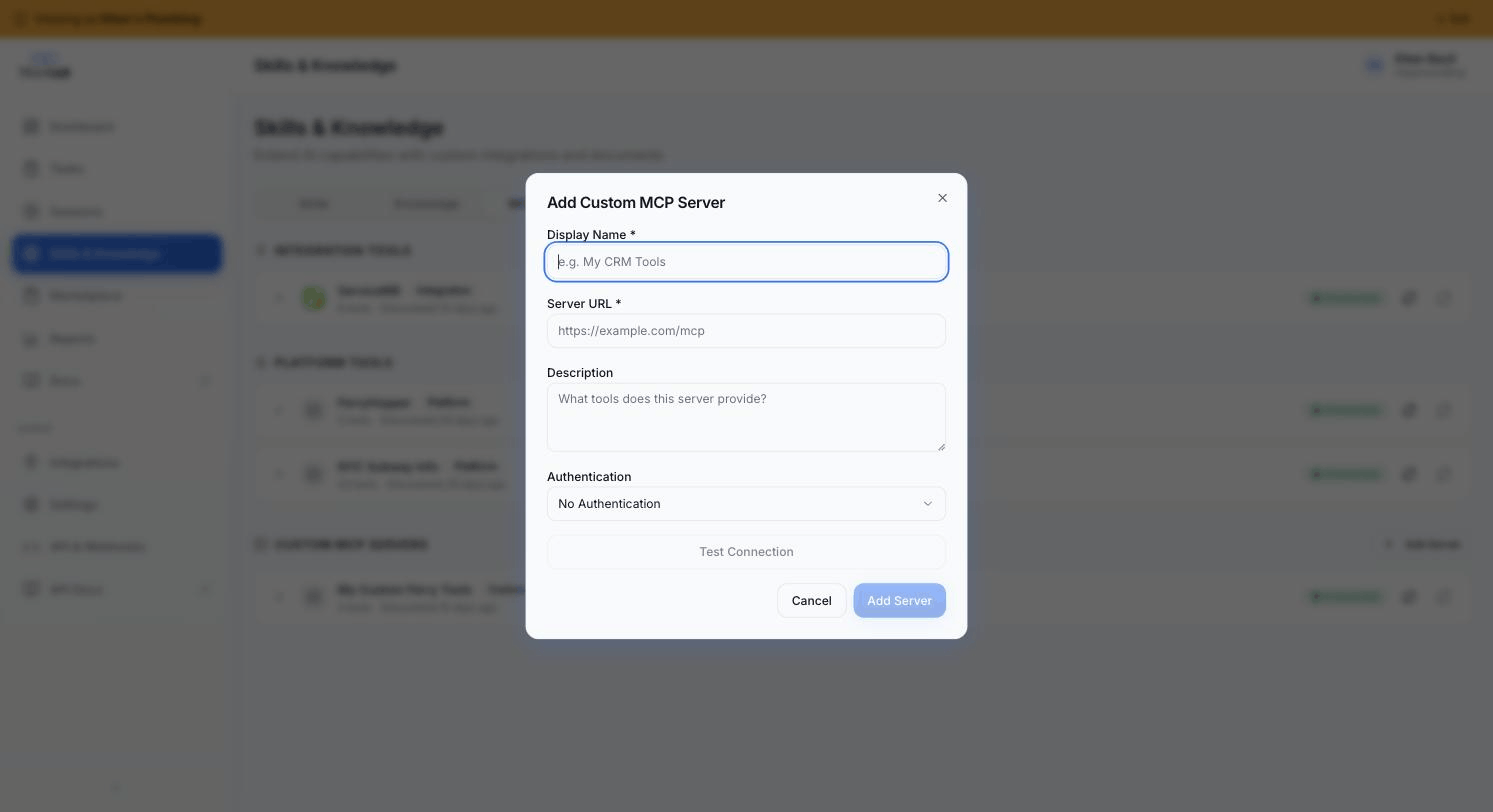
Enter:
- Display Name - what shows in the tab
- Server URL - the MCP server's endpoint (typically
https://<host>/mcpor/sse) - Description - optional, for your own reference
- Authentication - see below
- Click Test Connection - TrainAR calls the server's
tools/listto confirm reachability + discover the tool list. - Click Add Server to save.
Auth types supported:
| Auth type | What you provide |
|---|---|
none |
No auth - public MCP server |
bearer |
A bearer token |
oauth |
An OAuth client config (TrainAR handles the OAuth flow) |
For test purposes there are public no-auth MCP servers you can connect to verify the flow - e.g. https://mcp.ferryhopper.com/mcp (ferry routes) or https://subwayinfo.nyc/mcp (NYC subway info).
Default response handling
When you connect a server you set default response handling for ALL its tools:
default_response_target-contextordisplaydefault_display_hint-fullscreenorhud(if display)default_response_scheduling-INTERRUPTorWHEN_IDLE
These defaults apply unless a specific tool has its own override in Managing MCP tools. See Skill response fields for the meaning of each value.
For most third-party MCP servers, sensible defaults are:
default_response_target: context(the AI summarises in voice)default_response_scheduling: WHEN_IDLE(don't interrupt for background lookups)
You can always override per-tool later.
Removing a connection
MCP Tools tab → server card → ⋯ → Disconnect. Removes the tools from the AI's available set on the next session. Doesn't delete any data on the remote MCP server - just severs TrainAR's connection.
Common issues
| Symptom | Likely cause | Fix |
|---|---|---|
| "Connection failed" on Test | Server URL wrong or server down | Hit the URL with curl -X POST <url> -d '{"jsonrpc":"2.0","method":"tools/list","id":1}' to confirm directly |
| Connection succeeds but no tools listed | Server requires auth you didn't provide | Check the server's docs; may need bearer or OAuth |
| Tools listed but AI never calls them | Tool descriptions too vague | See Managing MCP tools - override custom_description |
Where to next
- Managing MCP tools - per-tool overrides
- MCP Tools overview - the concept
- Integrations overview - Path A integrations