
Uploading knowledge
Uploading a document to your account's knowledge base makes its content searchable by the AI in every future session.
Uploading a document to your account's knowledge base makes its content searchable by the AI in every future session.
What you can upload
| Format | Extensions |
|---|---|
.pdf |
|
| Word documents | .doc, .docx |
| Plain text | .txt |
| Markdown | .md |
| CSV | .csv |
| Images | .png, .jpg, .jpeg, .webp, .gif |
| Video | .mp4, .webm, .mov, .avi, .mpeg |
Maximum file size: 250 MB per file. Larger files should be split before upload.
What happens after upload
The processing pipeline runs in the background. You'll see the document's status flip through:
- Queued - sitting in the upload queue.
- Processing - text being extracted + chunks generated.
- Embedding - vector embeddings being created via
gemini-embedding-001(768-dim). - Ready - indexed + searchable. The AI can find this document.
Typical processing time:
- Plain text / Markdown: under 10 seconds
- 50-page PDF: 30-90 seconds
- 250 MB video: 5-15 minutes (video transcription is the slow part)
You don't need to wait for processing - close the tab, do other things. Files keep processing server-side.
PDFs: text vs scanned
For PDFs, the pipeline first attempts native text extraction. If the PDF is scanned or image-based (no selectable text), it falls back to OCR via vision-capable AI. OCR is slower (adds ~30s for a typical scanned manual) but works on legacy documentation that's only available as scans.
Images and diagrams
When you upload an image - wiring schematic, model plate photo, exploded diagram - the pipeline generates a detailed text description of the visual content. That description is what gets indexed and searched.
So uploading boiler diagrams as images is genuinely useful - not just as reference files but as content the AI can find and display on the glasses. See How the AI uses knowledge for the surfacing pattern.
Video
Video uploads get transcribed (audio) and key-frame analysed (visual). Both feed into searchable chunks. Useful for training recordings, manufacturer install walkthroughs, on-the-job procedure footage.
Upload flow
Dashboard → Skills & Knowledge → Knowledge tab → New → New Source.
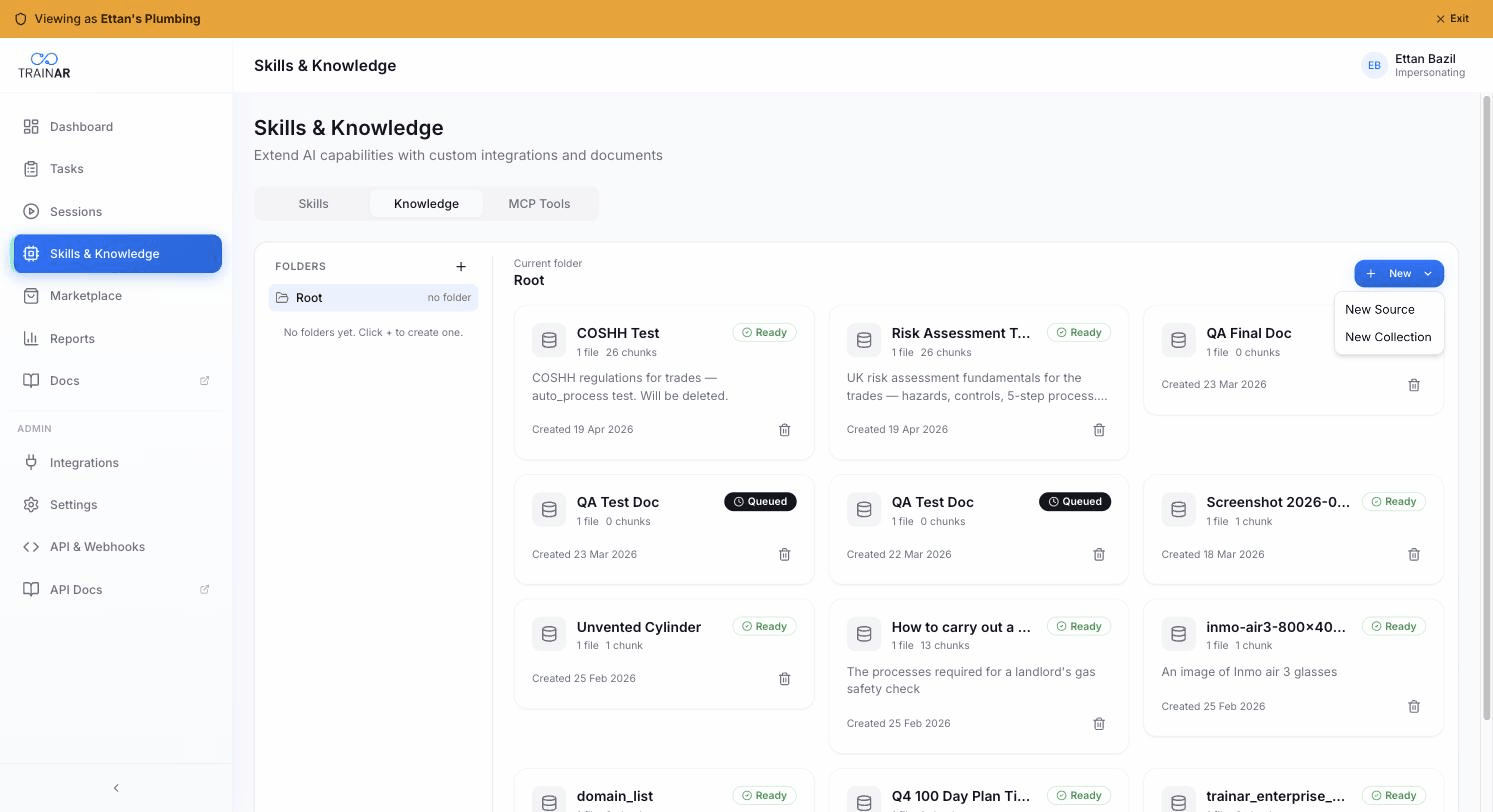
The New Knowledge Source modal opens. Give it a name, optional description, optional topic.
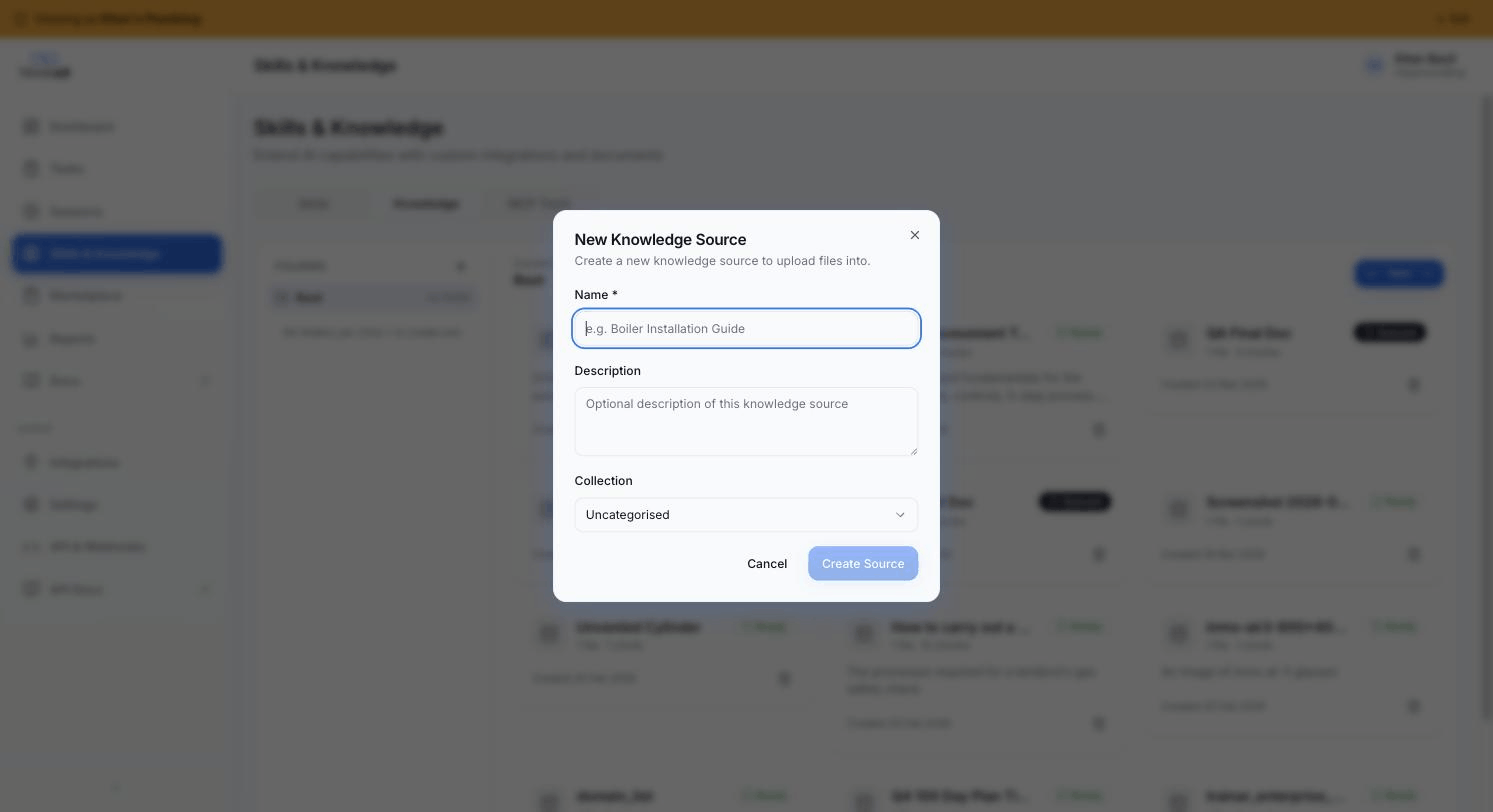
Create Source - opens the file detail view where you can drag-drop or browse for files. Multiple files at once is supported (PDF, DOCX, TXT, MD, CSV, images, or video - max 250MB per file).

Each file's status flips through
Pending→Processing→Readyas the pipeline runs.
The Dashboard shows per-file progress. Once each completes uploading, it enters the processing queue.
Re-processing
If the original document changed (you updated the PDF), or the parser improves:
Knowledge → row → ⋯ → Re-process. Re-processing is incremental - only changed chunks get re-embedded. A 200-page manual where you changed one section takes ~30 seconds.
Deleting a document
Knowledge → row → ⋯ → Delete. Permanently removes the file + all its chunks + all its embeddings. Cannot be undone. The AI loses access immediately on the next session.
If you want to temporarily exclude a document without deleting, move it to a separate topic that no seats are assigned to.
Where to next
- Knowledge topics - grouping for better AI retrieval
- How the AI uses knowledge - manifest + vector search
- Knowledge processing pipeline - what happens under the hood