
Install and pair
However you run TrainAR, you pair to a seat from the Devices page in the dashboard. There is no username or password inside the app - pairing is what binds a device to your account and seat.
A seat can hold up to 3 paired devices (for example a phone, a spare phone, and a pair of full AR glasses), and you can unpair any of them at any time from either side.
Option A - The mobile app
- Download TrainAR from the App Store (iOS) or Google Play (Android).
- In the dashboard, open Devices and click Pair device on your seat. A QR code appears.
- Open the app and scan the QR code. The app binds the phone to your seat and you land on Home.
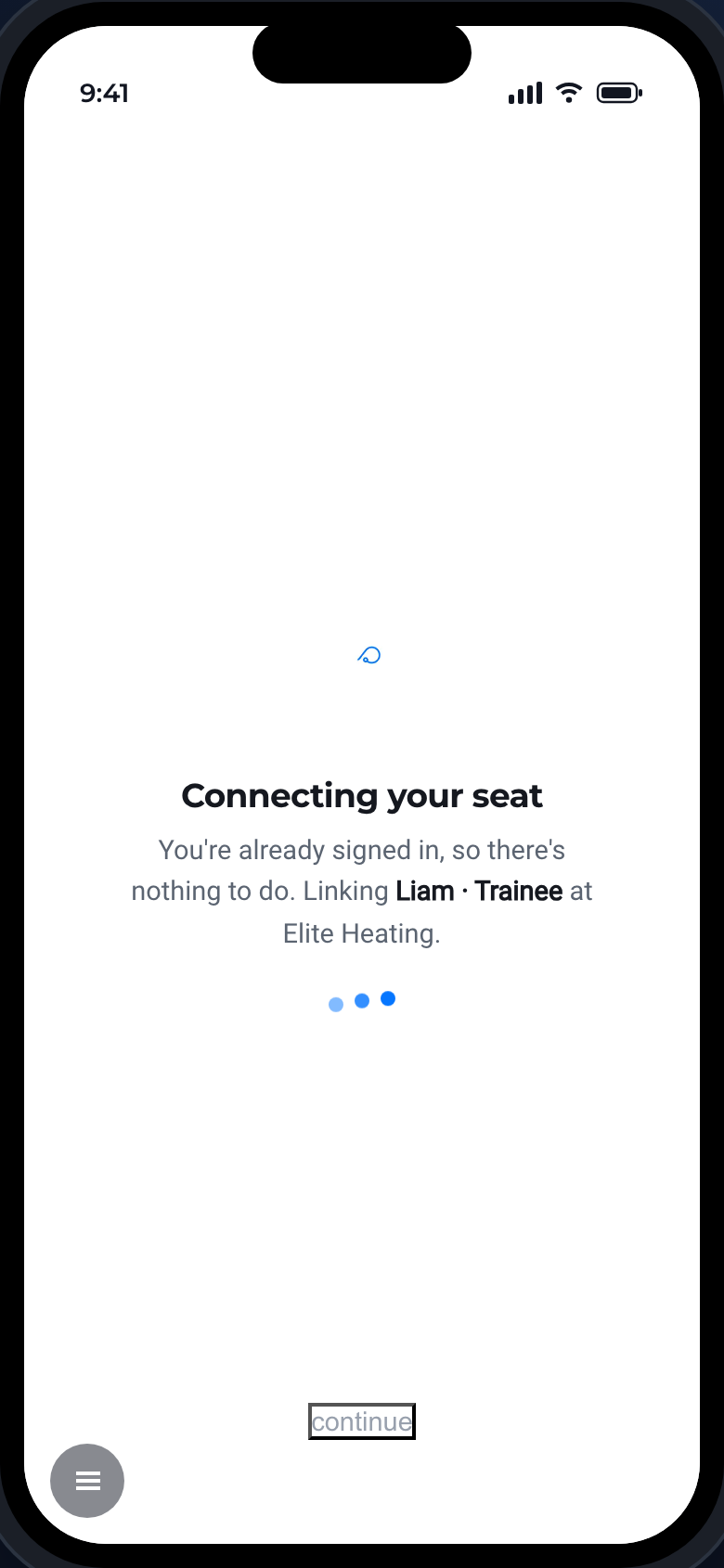
Can't scan right now? The pairing modal can also create a shareable pairing link. Copy it and open it on the phone (or send it by email or text) - the link takes the phone straight through pairing, no scanning needed. Links stay valid for several days and can pair more than one device, so an admin can send one link to an engineer and let them set up in their own time.
Once paired, if you want hands-free AR, connect glasses next - see Connecting your glasses.
Option B - Full AR glasses (app on the glasses)
On full AR glasses the TrainAR app runs on the glasses themselves, so the glasses pair directly:
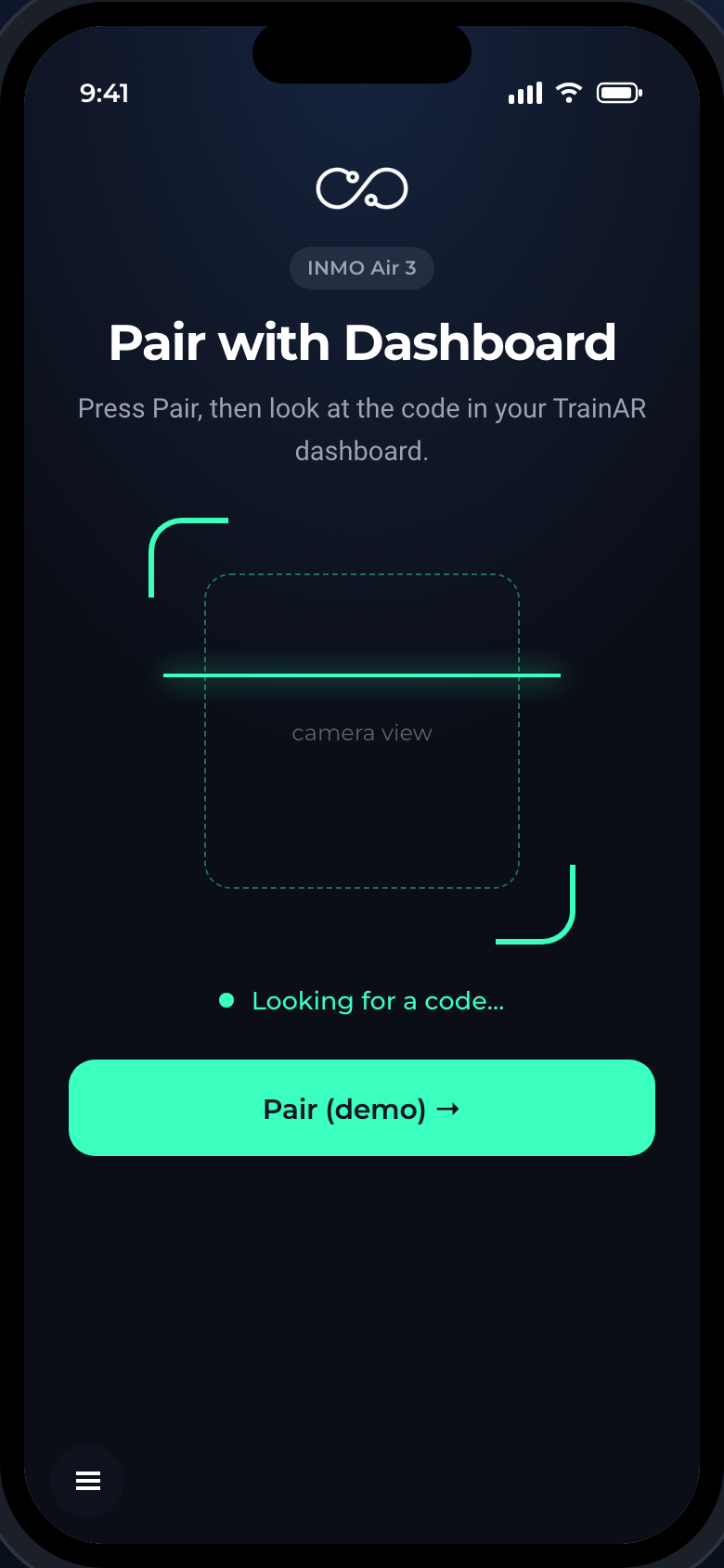
- Put on the glasses and open TrainAR. Press Pair - the glasses camera opens.
- Scan the QR code from the Devices page with the glasses.
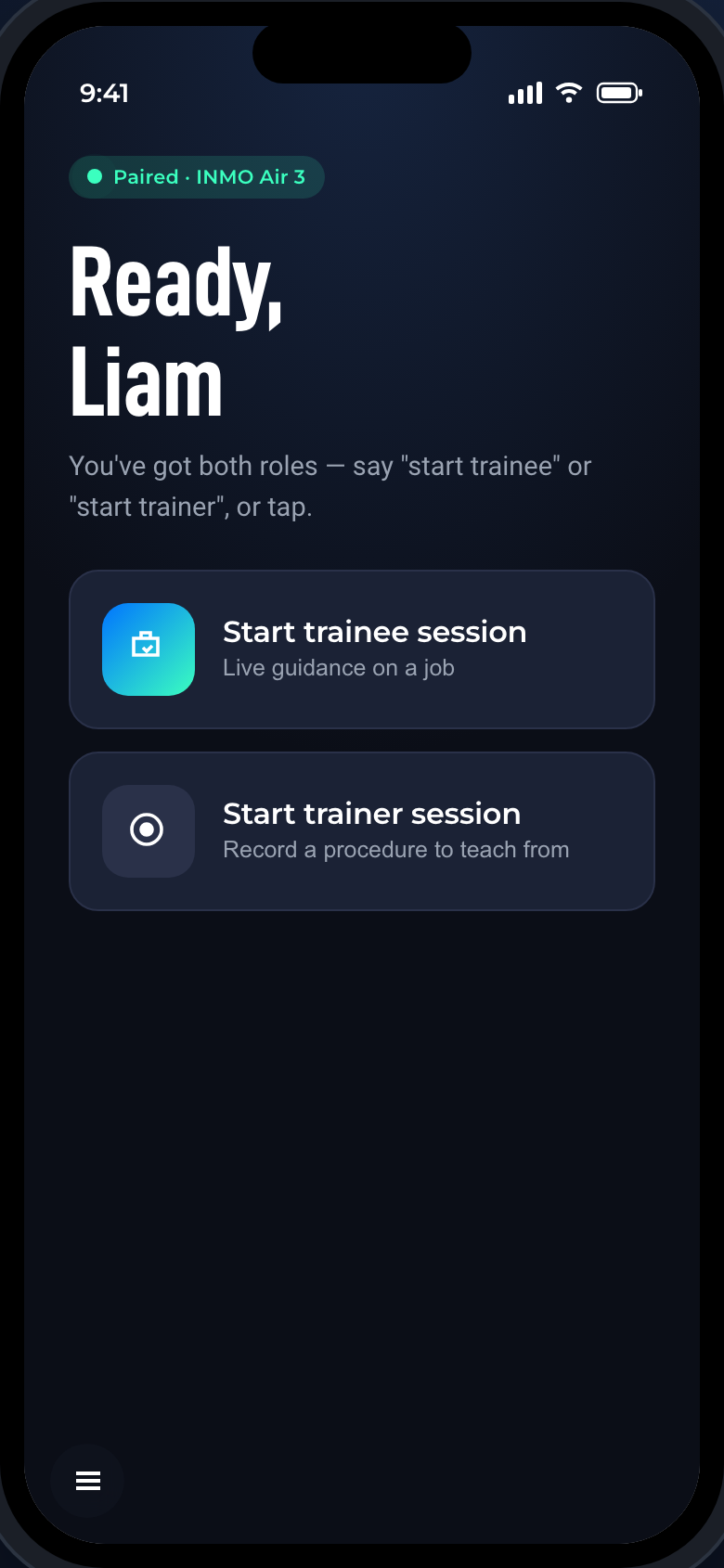
- The glasses show "Ready, {your name}" and drop you straight into a live AR session.
Where the QR code lives
Dashboard → Devices (admin), then Pair device on the seat you want. Engineers can also get there from Settings → My Seat → Pair device, which links to the same place for their own seat.
- The QR code itself refreshes every 10 minutes and is consumed by a successful pair - the modal generates a fresh one automatically.
- The shareable link is the durable option: it lasts days, survives multiple uses, and can be revoked from the dashboard.
The dashboard confirms the moment the device lands: the pairing modal flips to "Device paired!" with the device's model, and the seat's card on the Devices page shows the new device immediately.
Unpairing
- From the dashboard: Devices page → the device's Unpair button.
- From the app: unpair from the app's settings. The dashboard reflects it within a few moments.
Unpairing frees one of the seat's 3 device slots. The device keeps nothing - it has to be paired again (to any seat) before it can run sessions.
Pairing needs the seat to have an assigned user - the app greets the engineer by name and sessions are attributed to them. Assign users to seats from Settings → Seats.