
Minutes report
The Minutes tab of Dashboard → Reports shows your account's minute-pool position: what you've got left, how fast you're burning, how much runway it gives you.
The Minutes tab of Dashboard → Reports shows your account's minute-pool position: what you've got left, how fast you're burning, how much runway it gives you.
Active session time consumes minutes; pre-flight and post-session processing don't. The pool is account-wide - every seat draws from the same balance.
What the tab shows
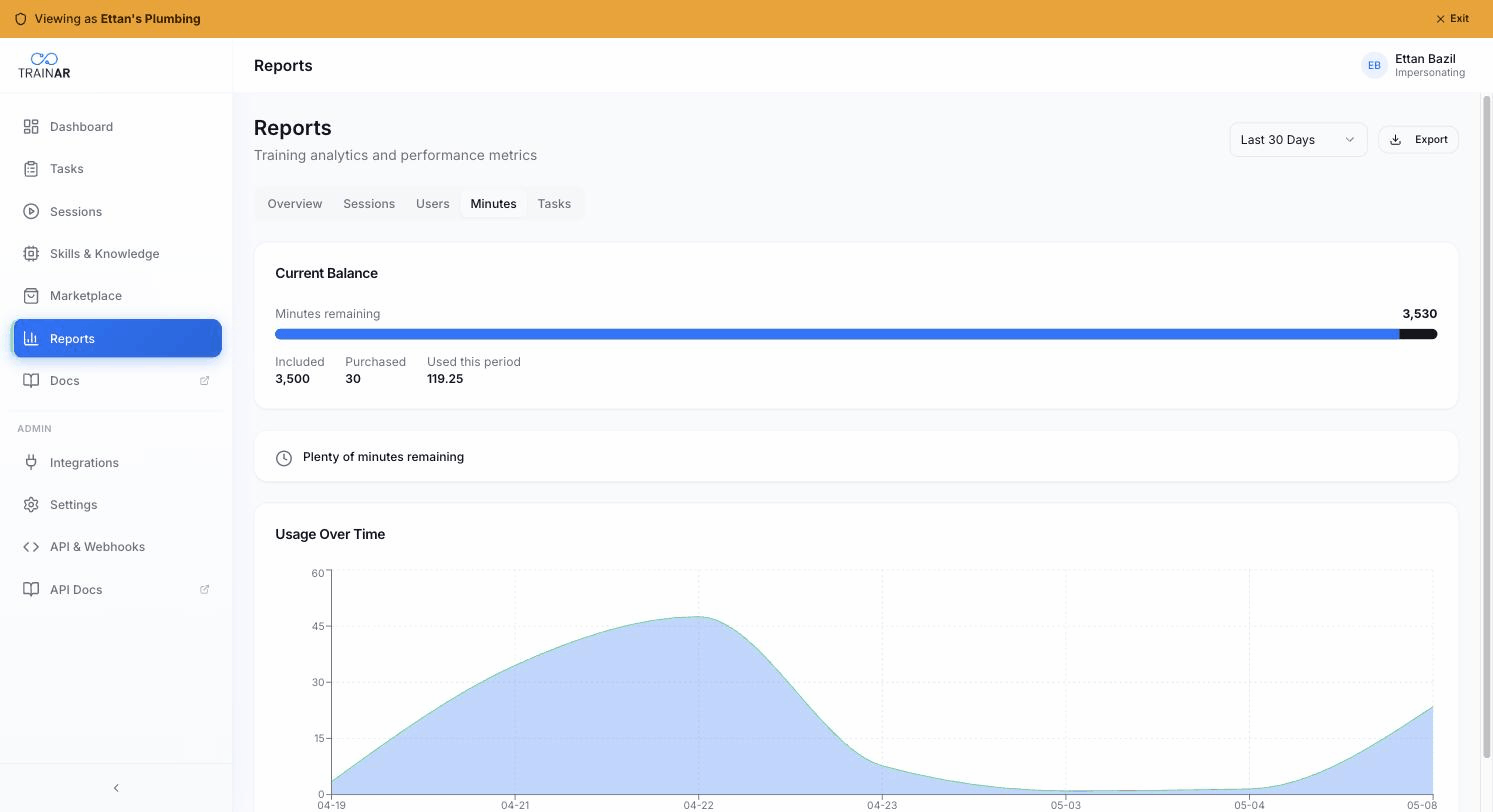
Current Balance card
The big card at the top. Shows:
- Minutes remaining - total balance (Included + Purchased) - with a progress bar.
- Included - minutes from your subscription this period (refresh on renewal).
- Purchased - minutes you've bought via one-off packs (no expiry).
- Used this period - what's been consumed in the selected reporting period.
Projected Runway card
Below the balance, a card showing approximately how many days the current balance will last at your current burn rate.
- If runway >365 days, it reads "Plenty of minutes remaining."
- If runway <7 days, the card switches to warning style with "Consider purchasing more minutes."
This is a rough projection from the selected-period burn rate, not a guaranteed figure - actual runway depends on future usage.
Usage Over Time chart
A stacked area chart showing daily minute consumption across the selected period, broken into Included (blue) and Purchased (mint) sources. Empty days appear as gaps; no data renders the "No usage data for this period" message.
Topping up
This tab is read-only - to add minutes, go to Settings → Billing (admins only):
- Buy More Minutes - one-off purchase from a minute pack via Stripe Checkout
- Auto top-up - enable threshold-based automatic top-ups (e.g. when balance drops below 100 minutes, buy a 500-minute pack)
See Billing & subscriptions for both.
How consumption works
- Session minutes are billed on active session time only. Pre-flight (~2 seconds) and post-session processing (5–15 minutes) don't count.
- Trainer and trainee mode burn at the same rate at the platform level.
- Skill calls don't burn extra minutes - they're included in the per-minute rate.
When the pool hits zero
Once the balance is empty, new sessions can't start on the glasses. The current session (if any) is allowed to finish - you don't get cut off mid-job. Top up from Settings → Billing → Buy More Minutes to resume.
Where to next
- Settings → Billing - top up the pool, enable auto top-up
- Reports overview - period selector + other tabs
- Sessions report - see what's driving the burn