
Subscribing to bundles
Subscribing to a bundle is the moment its skills, knowledge, and procedures become available to your engineers.
Subscribing to a bundle is the moment its skills, knowledge, and procedures become available to your engineers. This page walks the flow end-to-end and covers the edge cases (prerequisites, billing, allocation).
Before you subscribe
Two things to know:
- You need a payment method on file. Bundles are billed monthly per seat. Add a card from Settings → Billing if you haven't already.
- Some bundles have prerequisites. The bundle detail page flags these clearly - usually a required integration (e.g. a parts bundle that needs a job-management integration so the AI has job context to draw from). Connect those first.
The subscribe flow
- Dashboard → Marketplace - find the bundle you want.
- Click the card to open the detail page.
- Review what's in the bundle: skills listed, knowledge sources, sample procedures, the curator's profile.
- Click Subscribe.
- Choose how many seats the bundle should apply to. You can subscribe for fewer seats than your total - only allocated seats see the bundle's content.
- Confirm. The subscription activates immediately.
The bundle's skills, knowledge, and procedures are available to allocated seats from the next training session onwards. No glasses-side re-pairing needed; the Core App picks up the new entitlements automatically on session start.
What gets added to your account
After a successful subscribe:
- Skills & Knowledge → Skills - a new section appears with the bundle's skills listed (read-only; the curator owns them).
- Skills & Knowledge → Knowledge - any knowledge sources the bundle ships are listed under a separate "Bundle knowledge" group.
- Dashboard → Integrations - if the bundle ships an integration tile (e.g. Parts & Spares adds Parts Arena), it appears here.
- Sessions - allocated seats' next sessions show the bundle's skills + knowledge available to the AI assistant.
Allocating to seats
You choose seat count at subscribe time, but you can change it later:
- Dashboard → Marketplace → [the bundle] → Manage. Opens the allocation modal.
- Tick the seats that should have access; untick the ones that shouldn't.
- Click Save Changes. Allocated seats see the content on their next session; un-ticked seats lose access immediately.
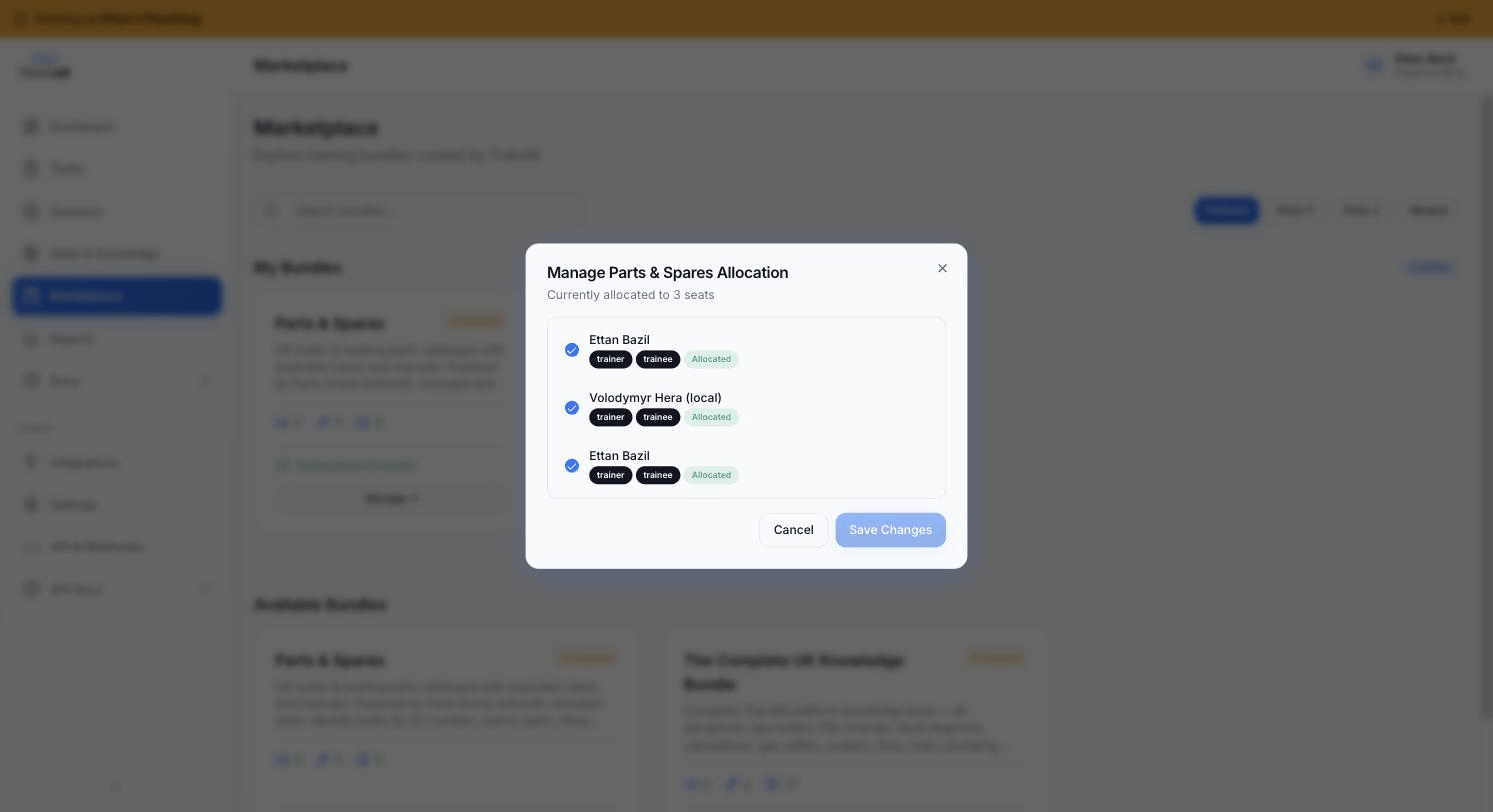
Changes take effect at the start of the next billing period for billing purposes, but the seat sees / loses the content immediately.
A common pattern: subscribe to 3 seats for a trial run, then expand once you've seen the bundle prove itself.
Billing
Bundles are charged per seat per month, prorated from the day you subscribe. The first invoice shows a partial-month line for the bundle alongside your base platform charge. Subsequent invoices are full-month per seat.
- Increasing allocation mid-cycle - the new seats are prorated for the rest of the month.
- Decreasing allocation mid-cycle - the removed seats keep the content through the end of the cycle; you're not charged for them next cycle.
See Settings → Billing for invoice history and payment method management.
Trial period
Some bundles offer a free trial - usually 14 days. Trials run on full seat allocation; you choose the seat count at trial start. If you don't cancel before the trial ends, the subscription converts to paid automatically.
The bundle card on the Marketplace tells you whether a trial is available.
Cancelling
From the bundle detail page, click Cancel subscription. Confirmation is required. Billing stops at the end of the current cycle; the bundle's content remains usable through the end of that period.
After the cycle ends:
- The bundle's skills disappear from the AI assistant on allocated seats' sessions.
- The bundle's knowledge sources stop being searchable.
- The integration tile (if any) is removed.
- Existing session recordings, procedures, summaries, etc. are preserved - you just lose forward access to the bundle.
You can re-subscribe at any time; the bundle picks up where it left off in terms of content.
Troubleshooting
"This bundle requires an integration that isn't connected." You'll see this on the Subscribe button if a prerequisite isn't met. Click through to the named integration page in Dashboard → Integrations and connect it first.
"Payment method declined." Update your card from Settings → Billing → Payment method, then retry the subscribe.
Subscribed but engineers aren't seeing the bundle. Check seat allocation - the engineer's seat may not be in the allocated set. Manage allocation from the bundle detail page.
Bundle isn't appearing in the Marketplace. Bundles can be region-restricted, industry-restricted, or in pre-release. Contact support if you're expecting one and don't see it.
Where to next
- What's in the Marketplace - bundle concept overview.
- Parts & Spares bundle - the live platform bundle for UK boiler + heating engineers.