
Viewing a session
The Sessions area of the Dashboard is for viewing recorded sessions and the procedures the Core App extracted from them.
The Sessions area of the Dashboard is for viewing recorded sessions and the procedures the Core App extracted from them. It's a read-only surface - there's nothing to approve, edit, or publish.
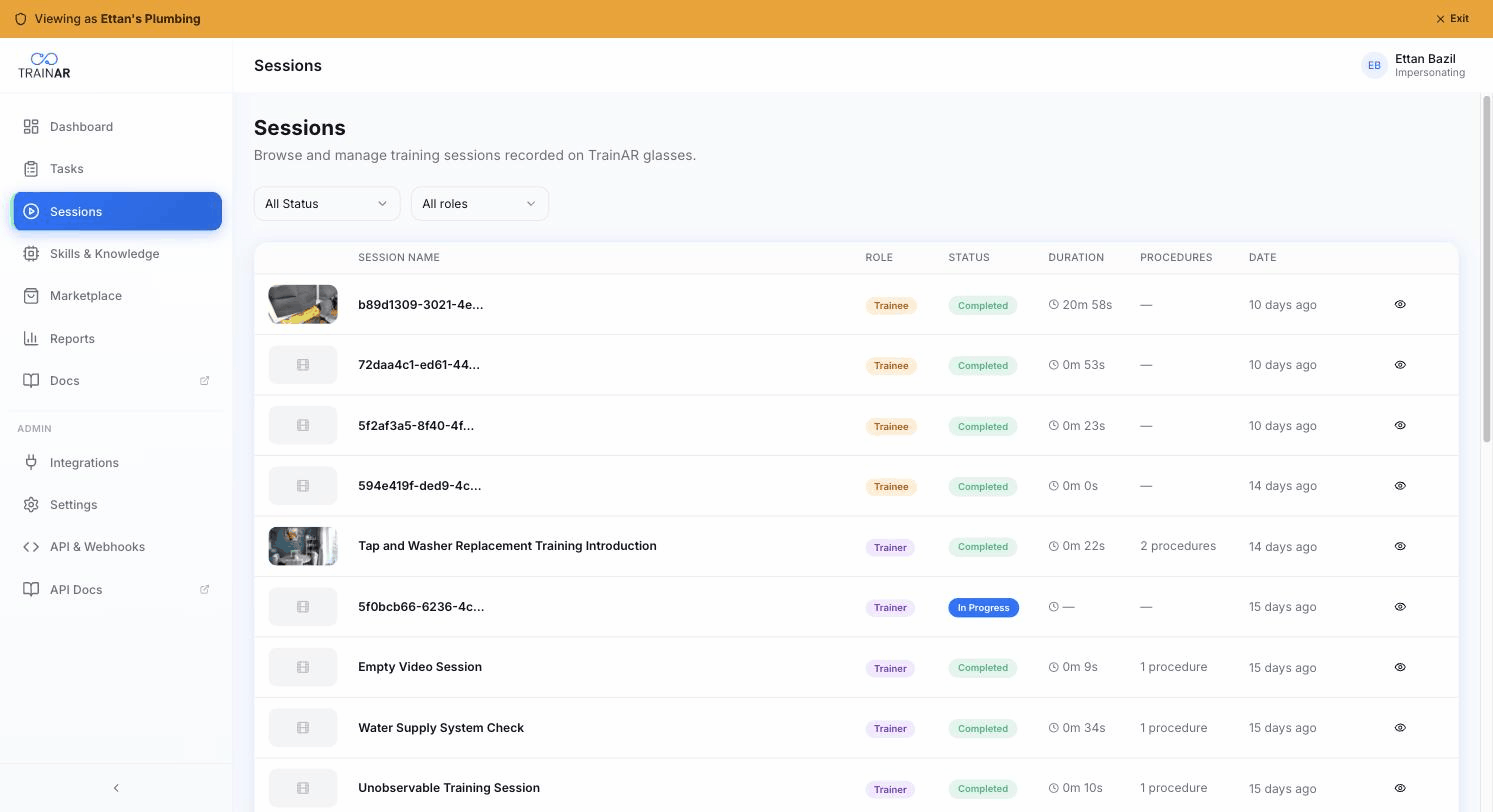
The Sessions list
Dashboard → Sessions. Shows every session in your account in a single table.
Filters available at the top:
- Status - All / Completed / In Progress / Failed
- Role - All roles / Trainer / Trainee
Each row shows:
- Thumbnail - auto-generated frame from the session video
- Session Name - typically auto-named from the task or "Session
" - Role - trainer or trainee badge
- Status - completed / in progress / failed
- Duration - total session length
- Procedures - count of procedures extracted
- Date - when the session completed
Click any row to open the detail page.
The Session detail page
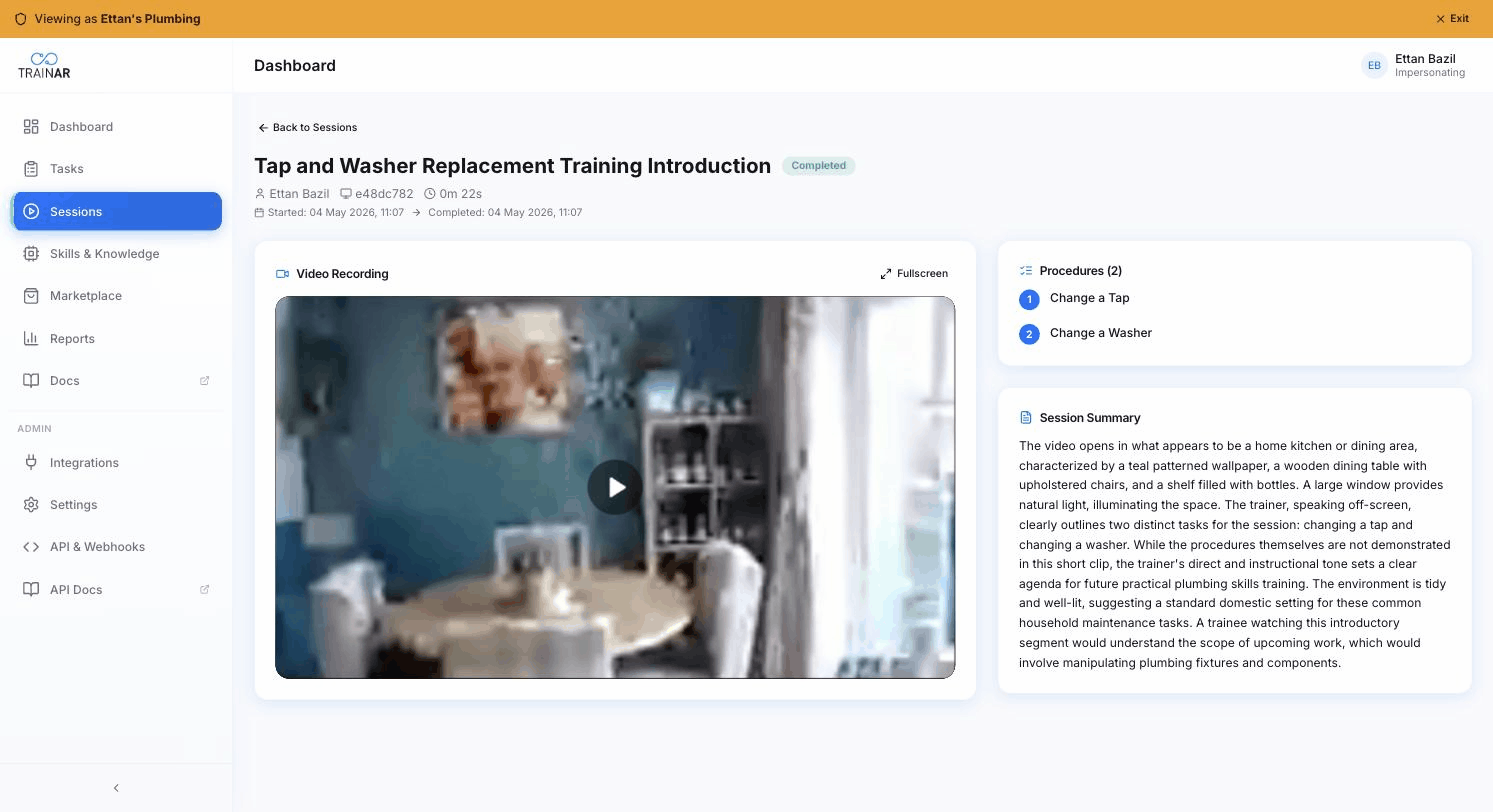
The detail page is laid out as:
Header
- Session name + status badge
- The user who ran the session
- Seat ID
- Total duration
- Started + completed timestamps
Left column - Video Recording
The full POV recording. Standard player controls plus a Fullscreen button. If the recording is still uploading or the legacy refresh URL has expired, you'll see a status message in place of the video.
If no recording was captured (rare - usually means the session was cancelled before any video was committed), you'll see "No recording was captured for this session".
Right column - Procedures (top)
Numbered list of every procedure the Core App extracted from this session - just the procedure name (and description where the Core App generated one). The list itself is not interactive - there's no per-procedure video clip rendered inline today; the main session recording is the only video on the page.
Per-procedure clips do exist in the data model (each procedure has its own video_url from the pipeline), but they're not surfaced on the Dashboard session detail today.
Right column - Session Summary (bottom)
If the Core App pipeline generated a summary, you'll see:
- Score - a 0-100 number with a progress bar
- Prose summary - narrative description of the session
- Trainer notes - optional free-text notes the trainer left
If none of those were produced, this card shows "Summary not provided by Training App."
Linked Task (conditional)
If the session was run against a task from an integration (e.g. a Jobber job, a ServiceM8 job), a Linked Task card appears below the main columns with:
- Task title
- Source badge (jobber, servicem8, etc.) + external reference ID
- Task status badge
- A View Task button
What's NOT on this page
For clarity, the detail page doesn't have:
- Tabs (it's a single layout)
- Approve/Reject buttons (procedures are auto-approved by the Core App pipeline)
- Procedure edit-in-place (procedures are read-only here)
- A transcript viewer
- A skills-called table
- An export button
The session is meant to be viewed, not curated. The Core App has already done the curation upstream.
Where to next
- Procedure extraction - why there's no approval step
- Privacy & GDPR - what's stored
- Sessions report - aggregated view across sessions