
Users & seats
Users and Seats are two separate concepts in TrainAR - and two separate admin tabs in Settings.
Users and Seats are two separate concepts in TrainAR - and two separate admin tabs in Settings. My Seat is the engineer-facing view of the same thing, and paired hardware is managed on the top-level Devices page.
| Concept | What it is |
|---|---|
| User | A person with a Dashboard login. Has an email, full name, role (admin or member), is active or deactivated |
| Seat | A workspace slot that costs a per-seat fee and runs sessions. A seat can be assigned to a user, holds up to 3 paired devices, and can be subscribed to bundles. |
| Device | A phone, tablet, or pair of AR glasses paired to a seat. Managed on Dashboard → Devices. |
A user can be a Dashboard-only admin (no seat). A seat can be unassigned (no user). A user with a seat assigned is the typical operating shape. When you sign up, TrainAR creates your first seat and assigns it to you automatically.
Users tab - admins only
Settings → Users.
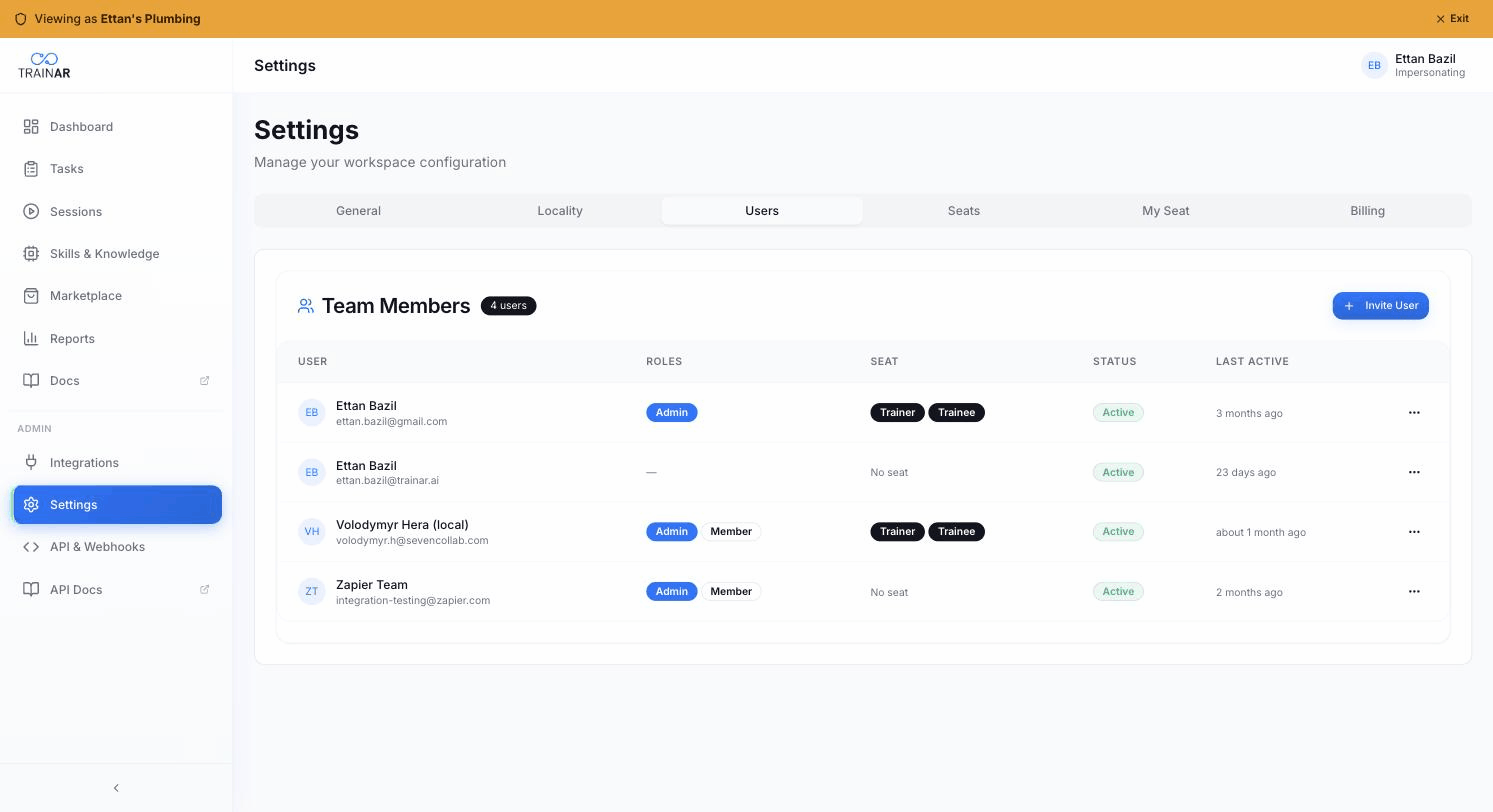
Header shows the team-member count and an Invite User button. Below is a table of every user in the account.
Table columns
| Column | What it shows |
|---|---|
| User | Avatar + full name + email |
| Roles | Pills - typically admin or none |
| Seat | Which seat (if any) is assigned to this user, with the seat's role badges |
| Status | Active or Inactive |
| Last Active | Time since last activity |
Per-row actions (admins only, on the ⋯ menu)
- Edit - opens the Edit User modal (full name, role, etc.)
- Deactivate / Reactivate - toggles
is_active. A deactivated user loses Dashboard access but their data is preserved. Doesn't free the seat. - Delete Permanently - irreversible. Nullifies the user's FK references on tasks, activity log, minute transactions, bundle allocations; drops their role and integration mappings; deletes the user record. Confirmation required.
You can't deactivate or delete yourself.
Inviting users
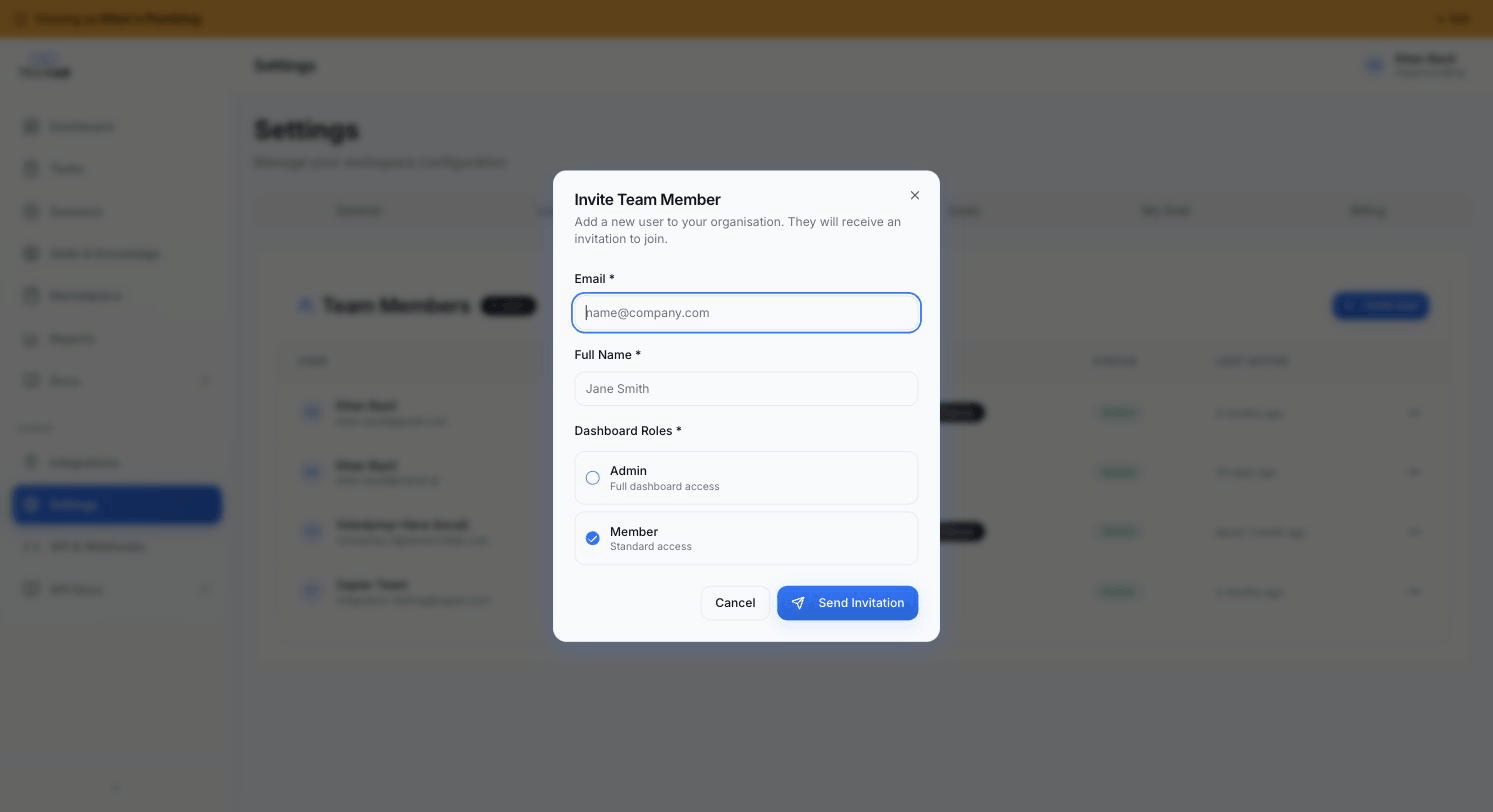
Invite User button → Invite modal. Email + full name + Dashboard role (Admin / Member). The invitee gets an email with a link to set their password and join the account. Invitations don't consume a seat - assign one separately on the Seats tab.
Seats tab - admins only
Settings → Seats.
Header shows overview cards: Total Seats (used/limit), Trainer Seats (assigned/total), Trainee Seats (assigned/total - hidden for curator accounts). Plus an Add Seat button (disabled for free-plan accounts).
Adding a seat
Click Add Seat. The wizard runs in three steps:
Step 1 - Details: pick the seat's roles (Trainer and/or Trainee - both ticked by default) and either assign a user now or leave unassigned.
Step 2 - Bundles (only shown if your account has active bundle subscriptions): subscribe the new seat to bundles so it has its skills and knowledge from day one.
Step 3 - Summary: confirmation of seat ID, roles, user, bundles. Done.
There is no hardware step - seats don't need any registered hardware. Pair a phone (or glasses) to the seat whenever you're ready, from the Devices page.
Add-seat is gated on your subscription's seat limit. If you've hit the limit, you see an "Upgrade Plan" prompt linking to Billing. With an active subscription, adding or removing seats syncs to Stripe automatically.
Seat detail
Open a seat from the table to see and edit it: reassign or unassign the user, and edit the trainer/trainee roles. A seat can hold both roles at once. Devices are managed on the Devices page, not here.
Removing a seat
Admins can remove a seat from the ⋯ menu. If you've got an active subscription, removal syncs to Stripe (your next invoice reflects the reduced seat count). Free-plan seats are just deleted directly.
Devices page - admins only
Dashboard → Devices (top-level nav) is where hardware lives. One card per seat, showing the assigned user, a "{n} of 3 devices" badge, each paired device (type, model, serial, and a Bluetooth accessory line for connected glasses), and per-device Unpair buttons.
- Pair device on a seat opens the QR + shareable-link pairing modal. See Install and pair.
- Up to 3 devices can be paired per seat.
- Buy glasses on the page header orders TrainAR-approved hardware; order progress (pending, awaiting delivery) shows on the seat until it arrives.
My Seat tab - everyone
Settings → My Seat.
The engineer-facing view of their own seat. Shows the seat ID and roles, and a device card with the paired state and a Pair device / Manage devices button that takes them to the Devices page.
If the engineer doesn't have a seat assigned, they see "You don't have a seat assigned yet. Contact your admin."
Where to next
- Install and pair - the device-side pairing flow
- Billing & subscriptions - seat limits, packages
- Settings overview - what each tab does