
Pairing your glasses
Pairing connects a physical pair of AR glasses to a specific seat in your TrainAR tenant.
Pairing connects a physical pair of AR glasses to a specific seat in your TrainAR tenant. Once paired, the glasses authenticate to TrainAR every time they're powered on — the engineer doesn't sign in manually.
What you'll need
- An admin login to the Dashboard (or the engineer themselves if they have a seat assigned and can pair via Settings → My Seat).
- A seat in the Dashboard with a registered device serial (or BYOH approval).
- The physical glasses, powered on, with the Core App installed and a network connection.
Step 1 — Register the device serial
If you bought the glasses through TrainAR, the serial is already registered to the seat — skip to Step 2.
If you're using BYOH (Bring Your Own Hardware):
- Dashboard → Settings → Seats.
- Find the seat. If its status is
needs_deviceorbyoh_pending, click into it. - Enter the serial number printed on the glasses (or on the box).
- Submit. The seat moves to
ready_to_paironce the serial is validated.
Step 2 — Generate a pairing code
- Dashboard → Settings → Seats.
- Find the seat (status should be
ready_to_pair). - Click Pair Device on the row's ⋮ menu.
- A QR code displays. It's valid for 10 minutes (countdown shown on the dialog).
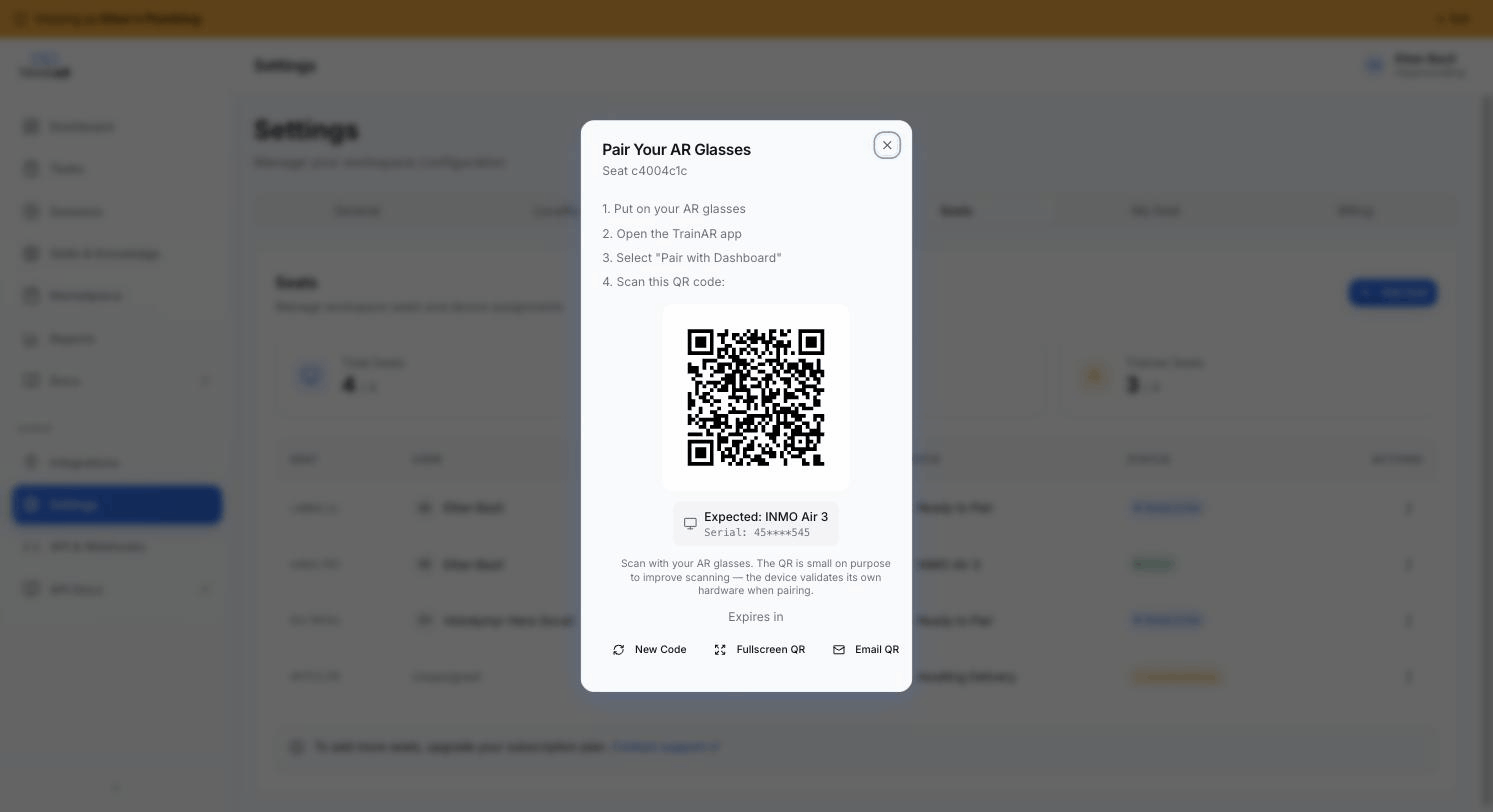
The dialog shows the four scan steps for the engineer (put on glasses → open app → select Pair → scan QR), the expected device model and serial so you can confirm you're pairing the right seat, and bottom-bar buttons for New Code, Fullscreen QR (best scan rate — see the tip below), and Email QR.
Use Fullscreen QR mode (button in the dialog) for best scan rate. The Inmo Air 3's camera has a short focal range — a larger QR scans more reliably from a comfortable distance.
Step 3 — Scan from the glasses
- The engineer puts on the glasses and powers them on.
- Open the TrainAR Core App (it should be the only app needed — pre-installed on hardware bought through us).
- The app's first screen prompts to scan a pairing code.
- Position the glasses so the camera sees the QR on the admin's Dashboard screen.
- Hold steady for ~1 second.
- The Core App shows Paired and the user's name.
In the Dashboard, the seat status updates to paired within a few seconds.
What gets verified
The pairing flow validates three things server-side before issuing the device token:
- The pairing code is unexpired (within the 10-minute window).
- The glasses' reported serial matches the registered device for that seat.
- The glasses' reported model matches the approved hardware on the seat.
If any check fails the Core App shows a clear error and the seat status doesn't change. Common reasons:
- Code expired. Generate a new one.
- Wrong serial. The glasses' serial doesn't match what's on file — double-check the serial on the device matches what was registered.
- Wrong model. The seat was set up for a different model. Edit the seat to allow this model, or use the device on the seat it's registered to.
Step 4 — Send to the engineer (optional)
If the engineer is remote and you can't pair at the office, the engineer can pair their own glasses via their Settings → My Seat tab:
- The engineer logs into the Dashboard.
- Settings → My Seat shows their seat status. If the seat is
ready_to_pair, a Pair Device button appears. - They click Pair Device, the same QR-code modal opens on their screen, and they scan with their glasses.
If the engineer doesn't have Dashboard access yet, generate the QR yourself (Step 2) and share the screen with them via screen-sharing — the 10-minute window applies.
Unpairing
If you need to move a pair of glasses from one engineer to another:
- Dashboard → Settings → Seats → seat row → Unpair.
- Confirm. The device token is revoked; the glasses will prompt for a new pairing code next time they're powered on.
- Allocate the same physical glasses to the new seat (re-enter the serial under BYOH if needed) and run Step 2 again.
Training history stays with the user, not the device — unpairing doesn't lose anyone's session history.
Troubleshooting
Glasses can't see the QR. Make sure the QR is on a screen, not on paper (camera focal length matters). Use Fullscreen QR mode. Hold the glasses 30–50 cm from the screen.
"Token expired" on scan. The 10-minute window passed. Generate a new code.
"Device serial mismatch." The glasses' reported serial doesn't match what's registered. If you bought through TrainAR, contact us. If BYOH, double-check the serial input.
"This device model isn't approved for this seat." Edit the seat's allowed-models list, or pair on a seat that allows this model.
Glasses paired but Core App says "Connecting…" forever. Network issue — the glasses can't reach TrainAR's API. Check Wi-Fi or hotspot. Try toggling airplane mode.
What happens after pairing
Once paired:
- The Core App authenticates every time it starts.
- The device token doesn't expire (it's revoked only when you unpair).
- The engineer can start sessions immediately (see Trainer mode and Trainee mode).
- Session minutes consumed are deducted from your tenant's minute pool — see Minute pools for how that works.